Managing your goCORA account
In the app: Settings › goCORA Account › Sign-In / Manage your goCORA account
Your goCORA account is your goCORA identity — an email address and password you register with goCORA. It's separate from the mail accounts you read in the app, and you don't need one to read and send email. You need it for Premium, backups, the AI Assistant, Require User Sign-in and the account lock.
Open it from Settings › goCORA Account › Sign-In to your goCORA account (or Manage your goCORA account once signed in).
Signing in or creating an account
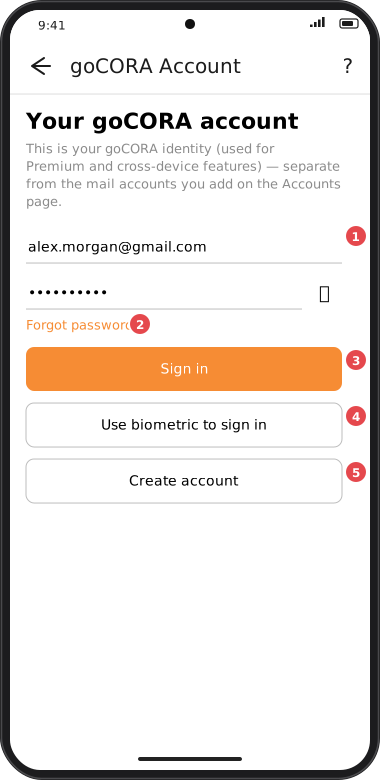
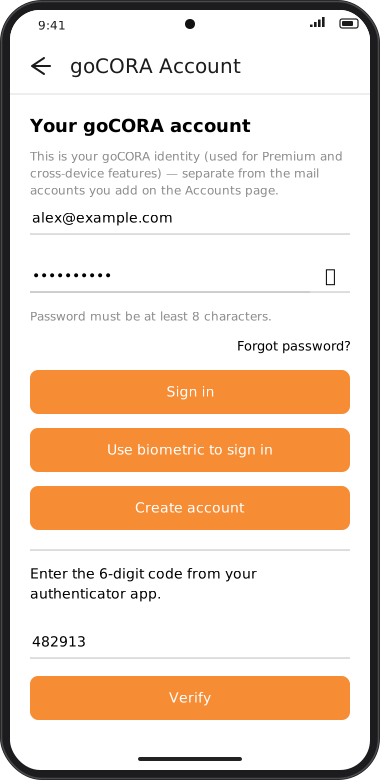
Screens are illustrated with the Android layout; Windows and iOS show the same screens with native styling. Red numbers on a picture match the numbered list or the numbers in the caption for that picture.
- Email and password — tap 👁 to show the password. Passwords must be at least 8 characters.
- Forgot password? — enter your email above first, then tap this; if a goCORA account exists for that address, a password-reset link is emailed to it.
- Sign in — if you use an authenticator app, a 6-digit code box and Verify appear next.
- Use biometric to sign in — shown when your device supports fingerprint or face sign-in.
- Create account — registers a new goCORA account with the email and password you entered. goCORA sends a verification link to that address; open it to verify your email. (Hidden while this device is locked to one account.) See Creating a new goCORA account.
Once you're signed in
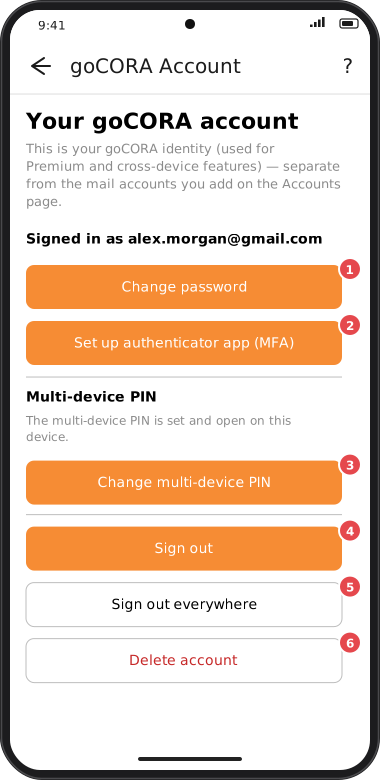
Screens are illustrated with the Android layout; Windows and iOS show the same screens with native styling. Red numbers on a picture match the numbered list or the numbers in the caption for that picture.
- Change password — emails you a password-reset link.
- Set up authenticator app (MFA) — add two-step verification. Once it's on, this button becomes Turn off authenticator app (MFA). See Two-factor authentication.
- Registered mailboxes 📬 — the addresses proven to be yours, so goCORA can ask for the keys of secure emails sent to them. See Registered mailboxes.
- Keys shared 🔑 — the answers this device gave when someone asked for the key of a secure email you sent. See Keys shared.
- Sign out — signs this device out of your goCORA account. Your mail accounts keep working.
- More ▼ — shows the less-used options below. Tap Less ▲ to hide them again.
- Sign out everywhere — after you confirm, signs you out of every device and browser, including this one.
- Multi-device PIN — lets every device you sign in on open your encrypted data. See Multi-device PIN below.
- Delete account — permanently deletes your goCORA account. See Deleting your goCORA account.
Items 7–9 are hidden until you tap More.
You can also manage your goCORA account on the web at gocora.com (My Account): verify your email, set up two-step verification, Change password (emails you a link to choose a new one), Sign out everywhere and Delete my account.
Multi-device PIN
goCORA's CORA encryption keeps part of your encryption key in the cloud, with your goCORA account, and part on each device. The multi-device PIN protects the cloud part, so every device you sign in on with your goCORA account can open your encrypted data. You choose the PIN; it isn't your goCORA password, and it never leaves your device.
New to using goCORA on several devices? Start with Multiple device setup.
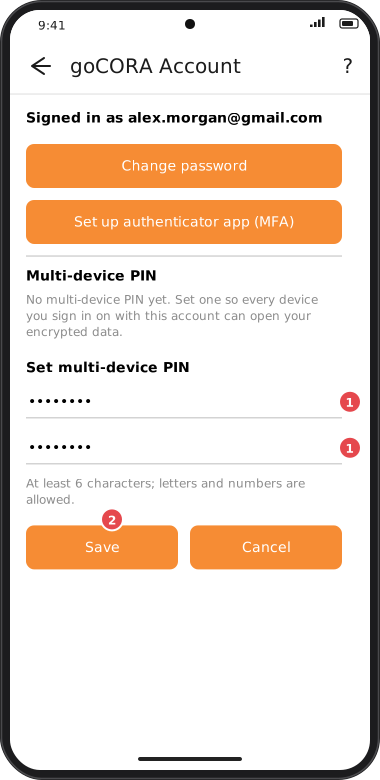
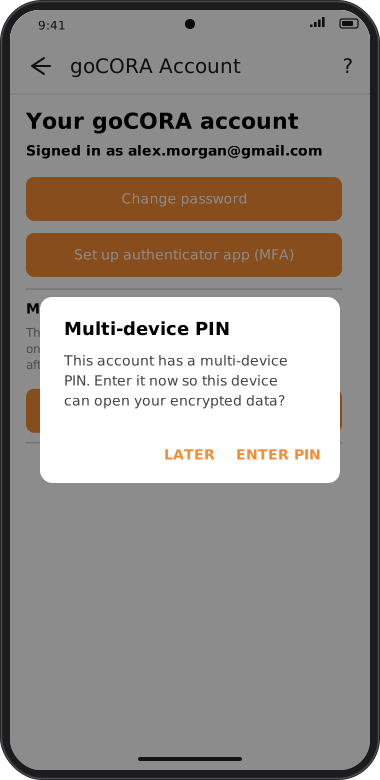
Screens are illustrated with the Android layout; Windows and iOS show the same screens with native styling. Red numbers on a picture match the numbered list or the numbers in the caption for that picture.
The Multi-device PIN section of the signed-in page (tap More to see it) shows where things stand on this device:
| The section says… | What it means and what you can do |
|---|---|
| No multi-device PIN yet. | No PIN has been set for this goCORA account. Tap Set multi-device PIN. |
| This account has a multi-device PIN. Enter it once on this device… | The PIN was set (or changed or reset) on another device and this one doesn't know it yet. Tap Enter multi-device PIN — or see Forgot the PIN? |
| The multi-device PIN is set and open on this device. | Everything is in place. You can Change multi-device PIN. |
| This is a backup account… | You're signed in with a backup account. It uses your main account's PIN: enter that PIN once on this device. Only the main account can set, change or reset the PIN. |
| N secure email(s) you sent before the PIN was reset… (in orange) | Some secure emails sent from this device still use the old security key. Recover them before the date shown — see Recovering older secure emails. |
| Couldn't check the multi-device PIN. | goCORA couldn't reach its server (for example, you're offline). Tap Check again. |
Setting the PIN
- Sign in, tap More, then tap Set multi-device PIN.
- Type a PIN of at least 6 characters (letters and numbers are allowed) in both boxes and tap Save. It takes a second or two — that's deliberate, to make guessing slow.
- goCORA confirms Multi-device PIN saved. Enter the same PIN on your other devices when goCORA asks for it.
Choose something hard to guess, and don't reuse your goCORA password.
On your other devices
Right after you sign in on a device that doesn't know the PIN yet, goCORA asks for it. Tap Enter PIN, type the PIN and tap Open, or tap Later and use Enter multi-device PIN on this page (under More) when you're ready. You only enter it once per device: goCORA remembers it in the device's secure storage and opens your data automatically after later sign-ins. Signing out doesn't make the device forget it.
Changing the PIN
On a device where the section says set and open on this device, tap Change multi-device PIN, type the new PIN twice and tap Save. Changing keeps the same security key, so nothing becomes unreadable. Your other devices ask for the new PIN the next time you open goCORA or sign in on them.
Forgot the PIN?
- First, check your other devices. If one of them still says set and open on this device, use Change multi-device PIN there and choose a new PIN — it keeps everything. goCORA shows this hint under the PIN on a device that asks for it.
- Otherwise, reset it. On a device that asks for the PIN, tap Reset multi-device PIN, read the warning, and choose a new PIN. Your other devices will ask for the new PIN.
A backup account can't reset the PIN: sign in with your main account to do it.
Recovering older secure emails
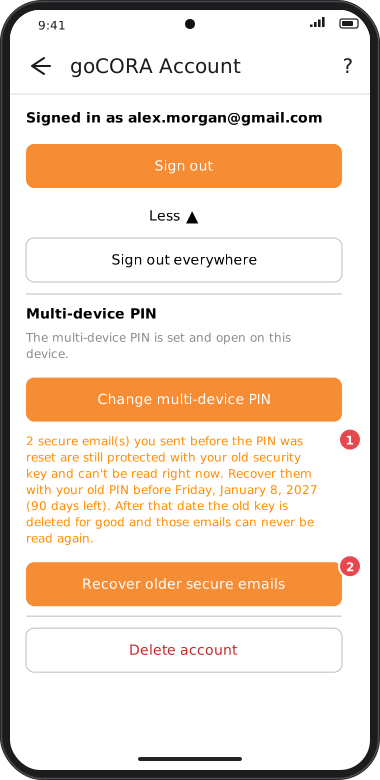
Screens are illustrated with the Android layout; Windows and iOS show the same screens with native styling. Red numbers on a picture match the numbered list or the numbers in the caption for that picture.
After a reset, the secure emails sent before it are recovered in one of two ways, within the 90 days:
- Automatically — on a device that still remembered the old PIN, when you enter the new PIN there. goCORA says "goCORA recovered N secure email(s)…". Open goCORA and enter the new PIN on each of your devices soon after a reset.
- With your old PIN — when the section shows orange text (1) such as "2 secure email(s) you sent before the PIN was reset are still protected with your old security key… Recover them with your old PIN before <date> (<n> days left)", tap Recover older secure emails (2), type the old PIN and tap Recover. goCORA tells you how many were recovered.
If the date has passed, the orange text says they can't be read any more. More about secure email: Secure email (CORA encryption).