Using AI on a message
In the app: Message › ✨
goCORA can use an AI provider — Claude (Anthropic) or OpenAI — with your own API key to help with a message. On the message screen, its own ✨ icon opens the AI actions — a dedicated entry point, separate from ⋮ More (the message's other actions). The same ✨ icon, in the same position, opens AI actions on the Mailbox (Ask your mailbox) and Compose (below) screens too.
Before you start
- Sign in to your goCORA account (how). AI actions are greyed out while you're signed out.
- In Settings › goCORA Settings, make sure Show AI features is on.
- In AI Assistant, save an API key and switch the AI assistant on. See AI Assistant settings.
The AI actions
| Action | What you get |
|---|---|
| ✨ Summarize | A structured summary card for this message: what it's about, important points, what you need to do, a deadline if one was mentioned, and anything still unresolved. A section with nothing in it just isn't shown. |
| ✨ Summarize conversation | The same structured card for the whole conversation this message belongs to (including your replies), plus who said or asked for what, and a tappable list of every message in the conversation. Older mail downloaded before conversation tracking was added may not be grouped. |
| ✨ Suggest Reply | A draft reply you can copy or open as a draft. |
| ✨ Extract details | Key facts pulled out of the message (dates, amounts, addresses…), each with its own Copy button. They're marked as unverified — check them before acting on them. |
| Summarize, Extract details and attachment analysis are remembered on this device: re-opening the same message (or the same attachment) shows the earlier result instantly instead of asking the provider again. Summarize conversation is never remembered this way, since new replies can arrive later. | |
| ✨ Translate message | goCORA asks which language, then shows the translation. |
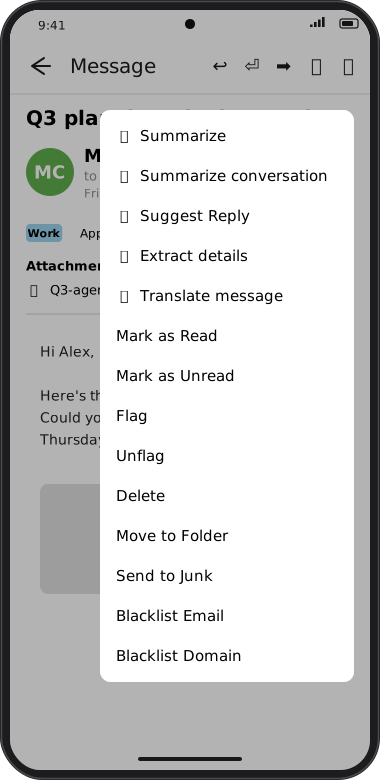
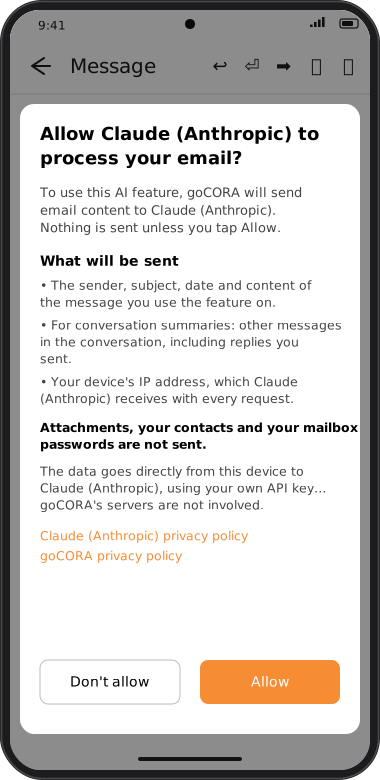
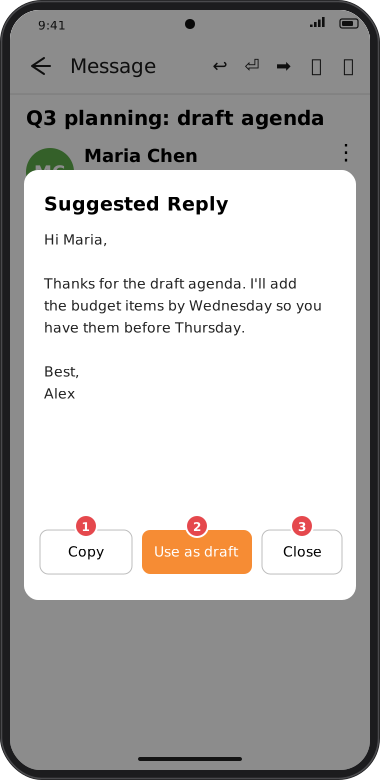
Screens are illustrated with the Android layout; Windows and iOS show the same screens with native styling. Red numbers on a picture match the numbered list or the numbers in the caption for that picture.
While it's working
Every AI action shows a "Working…" indicator with a Cancel button — tapping it stops the request with nothing shown, it isn't treated as an error. If a request fails, goCORA explains why in plain language (an incorrect API key, the provider rate-limiting requests, or no internet connection) rather than showing the provider's raw technical error.
Your permission comes first
The first time you use an AI action with a provider, goCORA shows exactly what will be sent — the sender, subject, date and content of the message (plus the rest of the conversation for conversation summaries) and your device's IP address — and what is not sent: any attachment other than a plain text file or PDF you separately choose to analyze (see below), your contacts and your mailbox passwords. The data goes directly from your device to the provider under your own API key; goCORA's servers aren't involved. Nothing is sent unless you tap Allow. You can withdraw permission at any time in AI Assistant settings.
Using the result
- Summarize / Summarize conversation — Copy (the whole card as text), Reply (opens Compose as a normal reply — the summary itself is never dropped in as your reply text), Close. A conversation summary's message list is separately tappable, to open any of those messages.
- Extract details — each value has its own Copy button, plus Copy all and Close.
- Suggest Reply / Translate message — Copy, Use as draft (opens Compose with the text as a reply to the sender), Close.
A suggested reply may come with a ⚠ Before you reply box — things worth checking first, such as a payment request you can't verify. Those notes stay on the card: Copy and Use as draft take only the reply itself, so your note to yourself never ends up in the email.
If an email hides text aimed at AI (for example white-on-white instructions to "ignore previous instructions"), goCORA removes it before anything is sent and says so on the result: "This email contained hidden text aimed at AI. goCORA removed it, so the AI never saw it." That notice comes from goCORA itself, not from the AI, so an email can't fake it or hide it.
Rewriting or translating your draft
While composing, replying or forwarding, tap ✨ in the Compose toolbar for More formal, Friendlier, Shorter or Translate. The result is shown for review with Replace (overwrites the draft body) and Cancel — nothing is changed unless you choose Replace.
Analyzing an attachment
Tap an attachment. For a plain text file (.txt, .csv,
.log, .md) or a PDF, you're offered Open or
Analyze with AI alongside it; every other file type opens as before, with no AI option shown.
- Only the PDF's existing text layer is read — goCORA does not run OCR, so a scanned or photographed page with no selectable text produces no result.
- Attachments larger than 2 MB, and PDFs longer than 30 pages, are refused before anything is sent, with a message explaining why.
- Word, Excel, PowerPoint, images and other formats aren't analyzed yet.
The result is a summary plus anything that looks actionable (amounts, dates, deadlines). As with every AI result, it's model output to review, not a verified fact.