AI Assistant settings
In the app: Settings › goCORA Settings › AI Assistant
Open Settings › goCORA Settings › AI Assistant. You need to be signed in to your goCORA account; otherwise goCORA asks you to sign in first. (If you don't see the row, turn on Show AI features just above it.)
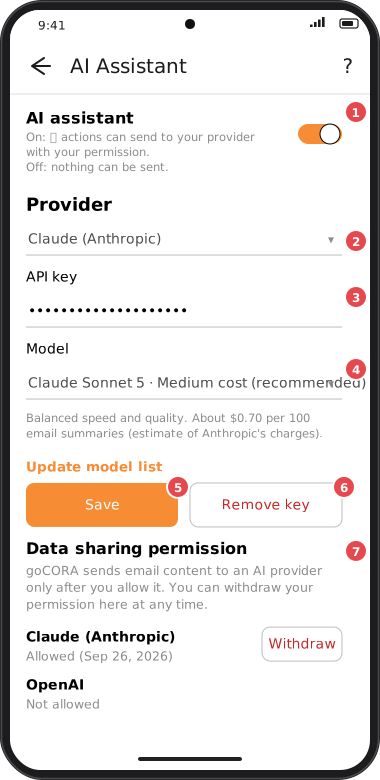
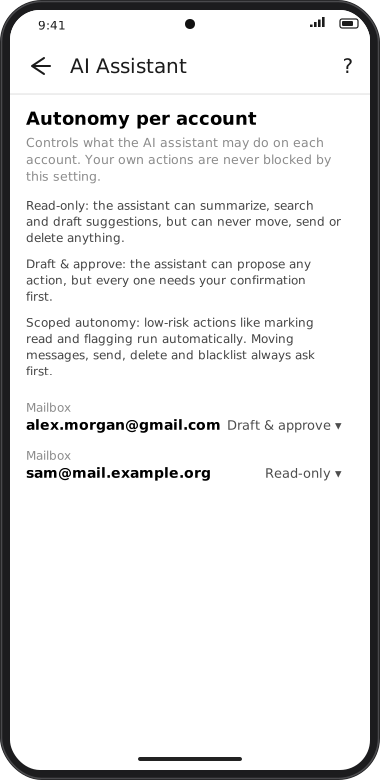
Screens are illustrated with the Android layout; Windows and iOS show the same screens with native styling. Red numbers on a picture match the numbered list or the numbers in the caption for that picture.
On/off, provider and key
- AI assistant — the master switch, first on the page. On: ✨ actions can send to your provider with your permission. Off: nothing can be sent. When keys for both providers are saved, this becomes a picker: Off, Claude (Anthropic) or OpenAI.
- Provider — Claude (Anthropic) or OpenAI. Each keeps its own key and model.
- API key — paste the key from your provider account. It's stored in your device's secure storage.
- Model — pick a model from the list. Each shows a cost level (Lowest cost, Medium cost or Higher cost), and the recommended one is marked. Under the list you'll see what the model is good for and roughly what 100 email summaries cost on your provider account — an estimate, since your provider bills you directly. Choose Other… to type any model ID your provider offers. Update model list fetches the latest list and prices from gocora.com — only when you tap it. That request sends nothing about you (no account, key, model choice or device details), and the app only uses a list that is digitally signed by goCORA. Your chosen model never changes unless you pick another one and tap Save.
- Save — saves the model, and the API key if you typed one in (“Model saved.” or “API key and model saved.”).
- Remove key — deletes the stored key for that provider from this device.
- Data sharing permission — shows whether you've allowed each provider to receive email content (and when). Withdraw revokes it; if that provider was the one in use, the AI assistant switch is turned off too — turn it back on at the top of this page when you want to use AI again. goCORA will ask again before sending anything.
Features
Turn each AI feature on or off on its own. A feature only ever runs when you tap it — turning one off just removes it from the app's menus, it doesn't touch anything already sent.
- Summarize messages
- Suggest replies
- Rewrite & translate
- Ask your mailbox — off by default, unlike the others; see Ask your mailbox for why.
- Extract information
- Analyze attachments
- Tidy my inbox — off by default too; see Tidy my inbox.
Autonomy per account
Choose, for each mailbox, how much the assistant may do. Your own actions are never blocked by this setting.
| Tier | The assistant can… |
|---|---|
| Read-only | summarize, search and draft suggestions, but never move, send or delete anything. |
| Draft & approve | propose any action, but every one needs your confirmation first. |
| Scoped autonomy | run low-risk actions such as marking read and flagging automatically. Moving messages, send, delete and blacklist always ask first. |
These settings can only be changed while an AI assistant is on. They're included in database backups (Restore AI Autonomy).