Ask your mailbox
In the app: Mailbox › ✨ › Ask your mailbox
Ask your mailbox lets you type a question and get an answer the AI worked out from messages already synced to your device — not just the one you happen to be reading. It's useful for things like "When is my library book due?" or "What did Priya say about Thursday?".
Before you start
- Sign in to your goCORA account (how). Tapping ✨ while signed out asks you to sign in first.
- In AI Assistant settings, save an API key and switch the AI assistant on. (The first time you tap ✨ with no key saved, a short guided setup does this for you — see AI Assistant settings.)
- In the same settings, under Features, turn on Ask your mailbox. It's off by default, unlike the other AI features — see why below.
Tapping ✨ on the Mailbox screen offers a small menu: Ask your mailbox and Tidy my inbox.
Asking a question
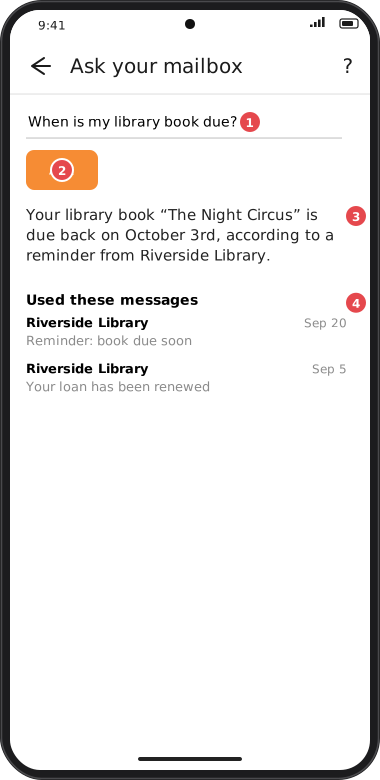
Screens are illustrated with the Android layout; Windows and iOS show the same screens with native styling. Red numbers on a picture match the numbered list or the numbers in the caption for that picture.
- Question box — type your question in plain language.
- Ask — searches your locally synced mail for messages that might be relevant. This search never leaves your device. If nothing matches, you're told so and nothing is sent anywhere.
- Answer — before anything is sent, goCORA tells you exactly how many messages it found and asks you to confirm. Only after you confirm are those messages sent to your AI provider, which then writes this answer.
- Used these messages — every message the answer relied on, so you can check it yourself. Tap any of them to open that message.
Why this one defaults to off
Every other AI feature only sends the one message you're already looking at. Ask your mailbox is different: answering a question can pull in other messages you weren't viewing, so it asks you to turn it on deliberately in AI Assistant settings rather than switching on automatically with the rest of the AI assistant.
Choosing it from the ✨ menu while it's off doesn't fail silently — it explains this and offers a button straight to AI Assistant settings.
The search is local, and limited
Finding candidate messages happens entirely on your device and costs nothing. It matches on sender and subject words, with a small bonus for more recent mail — it does not read message bodies before picking which ones look relevant, so a question whose only match is buried inside a message body may not find that message. If the answer looks wrong or incomplete, try rephrasing the question with a word likely to appear in the subject line or sender name.
Your permission comes first
As with every AI feature, nothing is sent to Claude or OpenAI until you've allowed that provider to receive email content once, and — for this feature specifically — until you've confirmed the message count shown for that particular question. The data goes directly from your device to the provider under your own API key; goCORA's servers aren't involved. See AI Assistant settings to review or withdraw permission at any time.