Locking goCORA to one account
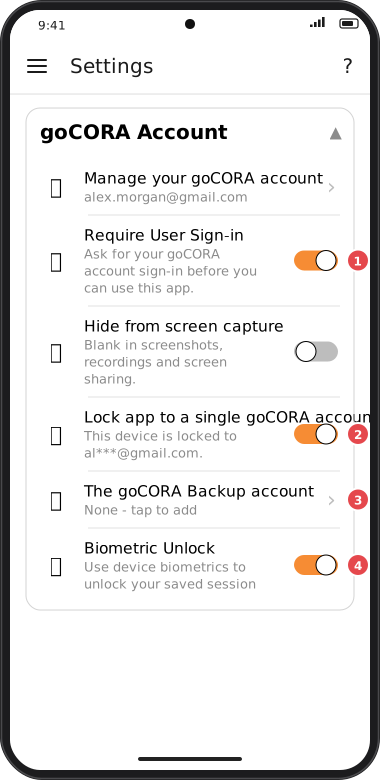
In the app: Settings › goCORA Account › Lock app to a single goCORA account
Lock app to a single goCORA account stops anyone signing in to goCORA on this device with a different goCORA account. It's useful on a shared or company device. You can name one backup account that is also allowed, in case you lose access to your main one.
Screens are illustrated with the Android layout; Windows and iOS show the same screens with native styling. Red numbers on a picture match the numbered list or the numbers in the caption for that picture.
- Require User Sign-in — often used together with the lock; see Require sign-in & biometric unlock.
- Lock app to a single goCORA account — shows which account the device is locked to (partly hidden, e.g. al***@gmail.com).
- The goCORA Backup account — appears while the lock is on, and stays visible (even with the lock off) once your account has a backup. Tap to add, replace or remove the backup.
- Biometric Unlock — unchanged by the lock.
Turning the lock on
- Sign in to your goCORA account (how).
- In Settings › goCORA Account, switch on Lock app to a single goCORA account and confirm.
- goCORA offers to add a backup account — tap Add backup now or Not now.
While locked, any other goCORA account is refused at sign-in, and Create account is hidden.
The backup account
The backup account is your own second goCORA account — for example one with another email address of yours — that you can use if you ever lose access to your main account. It belongs to your goCORA account, not to one device: it's saved with your account in the cloud, so every device you use sees the same backup, and a locked device lets it sign in even if the backup was added on another device.
- It uses your main account's security key. Signed in with the backup, goCORA opens the same encrypted data, including your secure emails, with your main account's multi-device PIN. A device that already knows that PIN doesn't ask again.
- It can't manage the PIN or the backup. The goCORA account page says "the PIN is managed by your primary account": only your main account can set, change or reset the PIN, and add, replace or remove the backup.
- Only add an account you control. The backup can open your encrypted data once it knows your PIN.
- Adding an account as a backup replaces that account's own security key with yours: data that account had protected with its own multi-device PIN can no longer be opened by it.
Adding a backup account
Screens are illustrated with the Android layout; Windows and iOS show the same screens with native styling. Red numbers on a picture match the numbered list or the numbers in the caption for that picture.
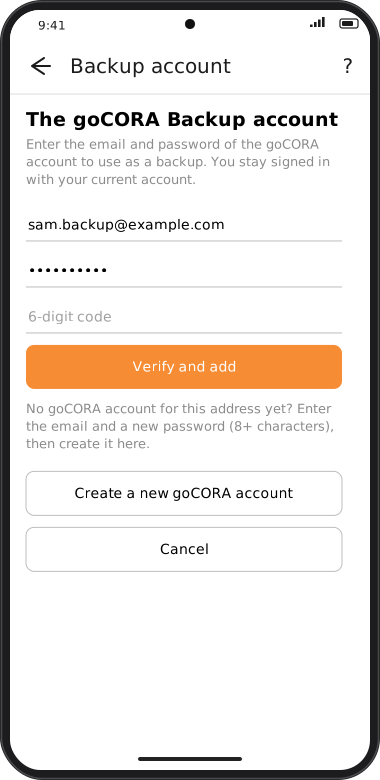
- Tap The goCORA Backup account (or Add backup).
- Enter the email and password of another goCORA account and tap Verify and add. If that account uses MFA, enter its 6-digit code too. You stay signed in with your current account.
- No goCORA account for that address yet? Enter the email and a new password (8+ characters) and tap Create a new goCORA account. A verification email is sent to it.
The backup must be a different account from the one you're signed in with.
Changing or turning off the lock
Only the locked account or its backup can change the lock — goCORA asks you to sign in as one of them first. Switch the lock off and confirm to let any goCORA account sign in again. Turning the lock off doesn't remove the backup. Signed in with your main account, tap the backup row to Replace backup account or Remove backup account (goCORA asks you to confirm). A removed backup can no longer open your encrypted data, on any device. Another locked device stops letting it sign in the next time you open Settings there with your main account.