Secure email (CORA encryption)
In the app: Compose › Secure
A secure email is encrypted with CORA before it leaves your device. Your email provider, and anyone else who gets a copy of the message, sees only a short notice and a block of scrambled text. Each secure email gets its own brand-new key.
Before you start
- Sign in to your goCORA account — goCORA asks you to if you aren't.
- Set up your multi-device PIN and enter it on this device. If it isn't open here, goCORA says "To send secure email, your multi-device PIN must be set up and entered on this device" and offers to open your goCORA account page.
- Without Premium, sending needs an internet connection: see How many secure emails you can send.
Sending a secure email
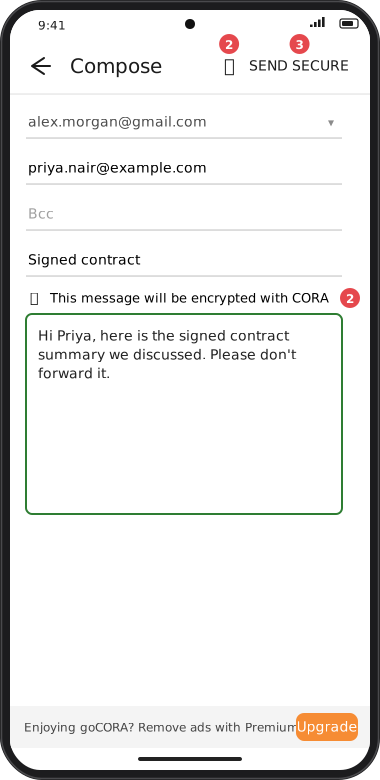
Screens are illustrated with the Android layout; Windows and iOS show the same screens with native styling. Red numbers on a picture match the numbered list or the numbers in the caption for that picture.
- Start a new message, a reply or a forward (Compose).
- Tap Secure in the toolbar. It is off for every new message. When it's on, a lock appears, the banner "This message will be encrypted with CORA" shows above the message, and the Send button becomes Send Secure. Tap Secure again to turn it off.
- Write your message as usual and tap Send Secure.
- Attachments can't be sent securely yet. goCORA asks you to remove them, or to turn off Secure and send the message normally.
- AI on a secure draft: if you use ✨ while Secure is on, goCORA asks first. The AI sees the text of the draft to help you write it; the email itself is still encrypted when you send it.
- A secure email is always sent as plain text (no formatting).
How many secure emails you can send
- With Premium on the device: no limit. goCORA doesn't need to check with its service first, so you can send secure emails even when you're offline (they leave when you're connected).
- Without Premium: 5 secure emails a month for your whole goCORA account, shared by all your devices that don't have Premium (a backup account shares the same 5). Before each one, goCORA asks its service to count it, so you need an internet connection. The count starts again on the 1st of each month. A secure email counts as soon as you tap Send Secure, even if sending then fails or you cancel.
Messages you might see:
- "Monthly secure email limit reached" — your account has used its 5 free secure emails this month. The message shows the date the count starts again. Tap Premium to see Premium, or OK to go back to your message: nothing was sent and your message is kept.
- "goCORA's secure email service can't be reached right now" — check your internet connection and try again. You can tap Cancel to keep your message, or Send without encryption.
What the recipient sees
The message starts with this notice, followed by the encrypted block:
This is an encrypted email that requires the goCORA app to decrypt.
-----------------------------------------------------------------------------

-----BEGIN CORA MESSAGE-----
Key-Id: …
Sender-Id: …
(encrypted text)
-----END CORA MESSAGE-----
Sender-Id is a random code for the device that sent the message. It doesn't contain your name or email address; it lets goCORA know which of your devices holds the message's key.
Recipients who use goCORA tap Ask the sender for the key: your goCORA shares the key only if one of their registered mailboxes is a recipient of that email. See Asking the sender for the key and Keys shared.
Registered mailboxes
In the app: Settings › goCORA Account › Manage your goCORA account › Registered mailboxes
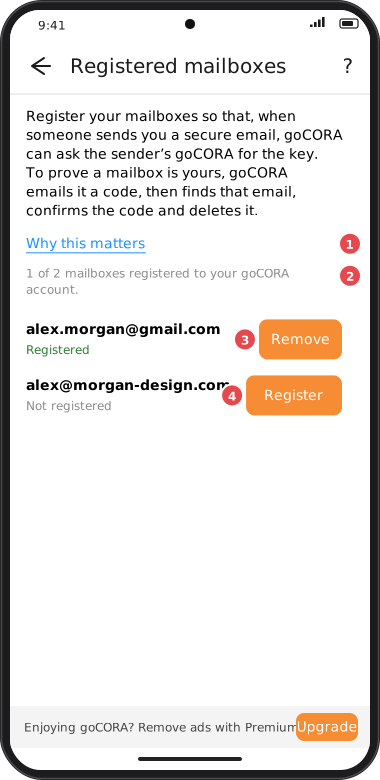
Why this matters. When someone sends you a secure email, its key stays on the sender's device. To read it, your goCORA asks the sender's goCORA for the key. The sender's goCORA only shares a key with an address that is on that email's recipient list and has been proven to belong to you. A copy of the email is never proof: mail providers, forwards and backups all have copies. Registering your mailboxes is that proof.
- After you sign in to your goCORA account, goCORA offers once: "Register your mailboxes?". Tap Register, or open Registered mailboxes on your goCORA account page at any time.
- For each mailbox, goCORA's service emails a 6-digit code from [email protected] (subject "goCORA verification code: 123456"). goCORA finds that email in the mailbox (also in Junk), confirms the code and deletes the email. This usually takes seconds, sometimes up to 5 minutes.
- If goCORA can't find it, it asks you to type the code: open that mailbox, find the email and enter the code. A code is valid for 30 minutes.
- Free goCORA: 2 mailboxes per device and 2 registered mailboxes per goCORA account. With Premium on a device, more.
- An address can be registered to only one goCORA account. If it's already registered to another account, goCORA says so.
- Remove takes an address off your goCORA account: goCORA can then no longer ask for the keys of secure emails sent to it, until you register it again.
- goCORA's service stores registered addresses only in a scrambled form (a keyed hash). See our privacy policy.
Reading a secure email
Open the message (in your Sent folder, or a secure email you received). goCORA recognizes the encrypted block, decrypts it and shows the banner Encrypted with CORA above the text. The email itself stays encrypted in your mailbox: goCORA decrypts it on screen each time you open it. To decrypt, goCORA needs:
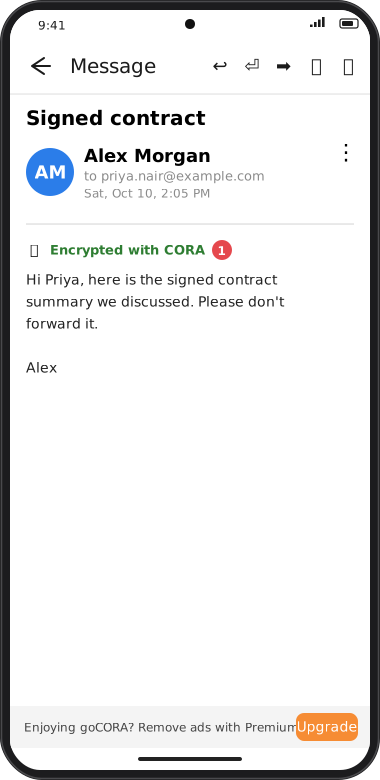
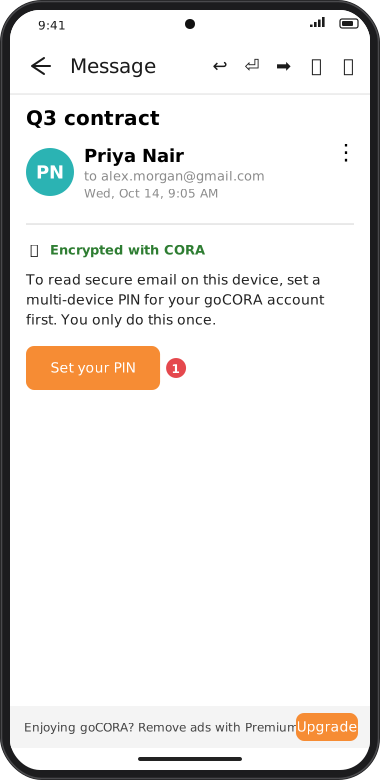
Screens are illustrated with the Android layout; Windows and iOS show the same screens with native styling. Red numbers on a picture match the numbered list or the numbers in the caption for that picture.
- The key — kept in goCORA's encrypted storage on the device that sent the message, or received from the sender when you ask for it.
- You signed in — otherwise: "To read this secure message, sign in to your goCORA account." Tap Sign in to goCORA: after you sign in (and enter your PIN if needed), goCORA brings you back to the email.
- Your multi-device PIN on this device — if this device remembers it, goCORA opens it by itself. Otherwise the email says "To read this secure message, enter your multi-device PIN." with an Enter your PIN button, or, if your account has no PIN yet, "To read secure email on this device, set a multi-device PIN for your goCORA account first. You only do this once." with Set your PIN. The button opens the PIN form and then returns you to the email.
The key of each secure email is protected twice: by this device and by your multi-device PIN. Someone who copies the device's files without your PIN, or who learns your PIN without the device, still can't read the message. A backup account uses the same PIN, so it can read them too.
Asking the sender for the key
When someone sends you a secure email, its key stays on the sender's device. The first time you open it, goCORA explains: "This secure email's key is on the sender's device. goCORA can ask the sender's goCORA for it. It is shared only if one of your registered mailboxes is a recipient of this email."
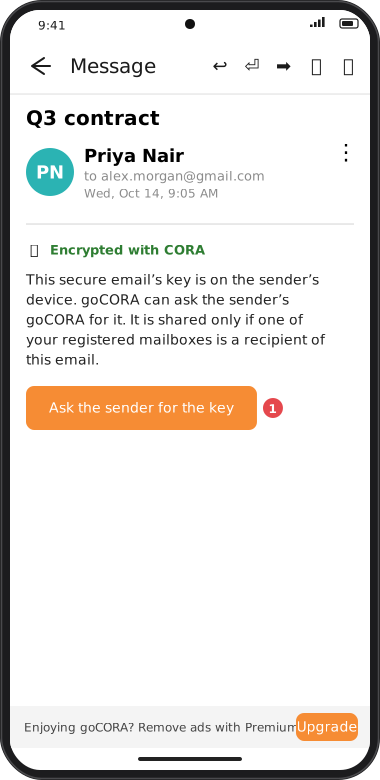
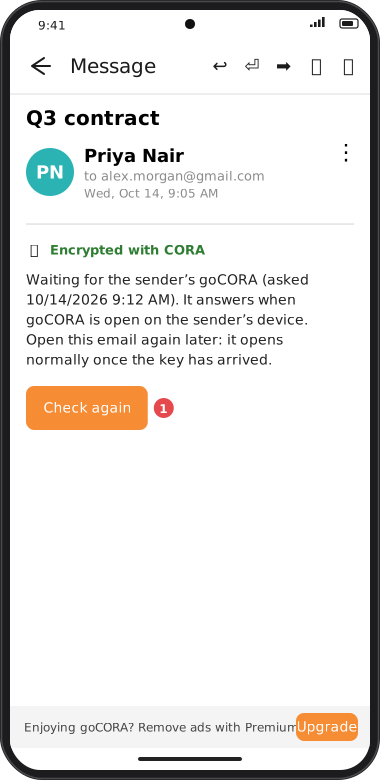
- Make sure the address the email was sent to is one of your registered mailboxes. If it isn't, goCORA says "Register your mailbox first" and offers to open Registered mailboxes.
- Tap Ask the sender for the key. goCORA creates a one-time key for this request and sends the request through goCORA's service.
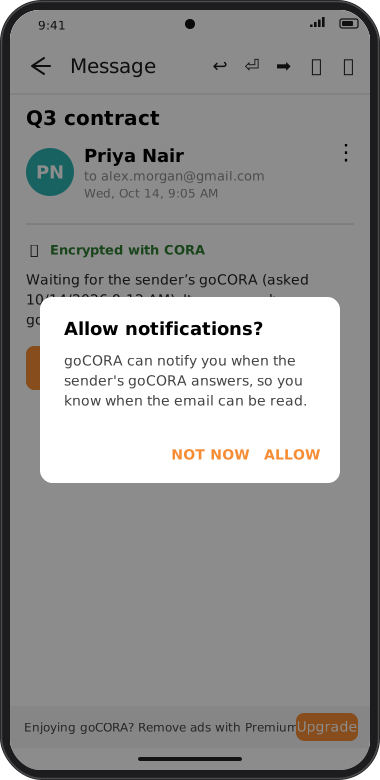
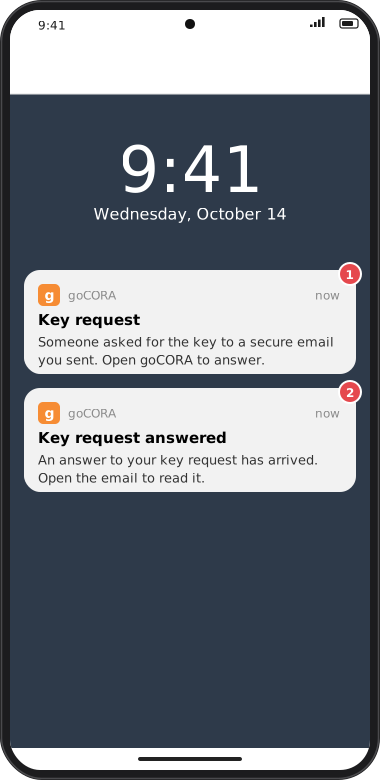
- The email now says "Waiting for the sender's goCORA (asked …)". On Android and iPhone, the sender's phone gets a Key request notification. The sender's goCORA answers while goCORA is open on their device and they are signed in to their goCORA account there (with their multi-device PIN entered on that device): right after they sign in, when goCORA comes back to the screen, and regularly while it stays open (on Windows, every 30 minutes).
- On Android and iPhone, you get a Key request answered notification when the answer arrives. Open the email again, or tap Check again: once the key has arrived, the email opens normally.
Other messages you might see:
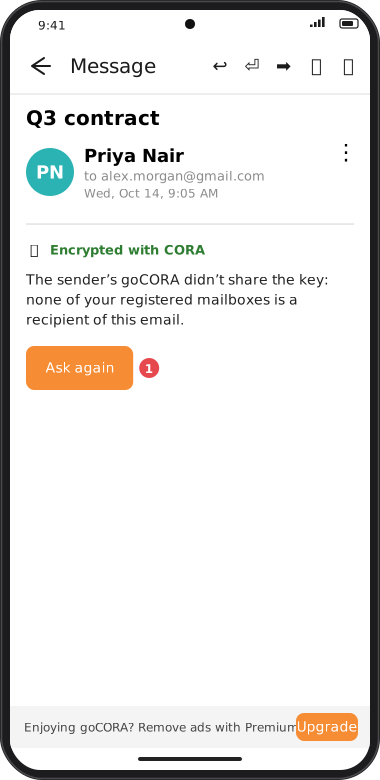
- "The sender's goCORA didn't share the key: none of your registered mailboxes is a recipient of this email." — for example, the email was forwarded to you. Only the people it was sent to can get its key. Ask the sender to send it to you directly. Ask again sends a new request.
- "The sender's goCORA didn't answer in time." — the request expired before the sender opened goCORA (requests are kept for 7 days, or 30 days if the sender has Premium). Tap Ask again.
- "The sender's goCORA can't be reached for this email." — the sender's device is no longer registered with goCORA (for example, the sender deleted their goCORA account).
- "This secure email was sent by an older version of goCORA, so its key can't be requested." — ask the sender to send it again.
How the key travels. The sender's goCORA locks the key with your request's one-time key, so only the device that asked can open it; goCORA's service passes it on without being able to read it, and deletes it once your device has collected it. Your goCORA then keeps the key protected by your own multi-device PIN, like the keys of the secure emails you send. From then on the email opens on this device without the sender. Keys are kept on each device (and in its backup): on another of your devices, tap Ask the sender for the key there too.
Keys shared
In the app: Settings › goCORA Account › Manage your goCORA account › Keys shared
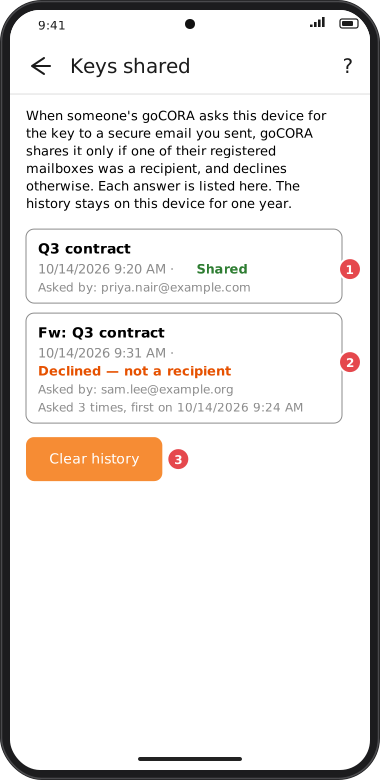
When a recipient asks for the key of a secure email you sent from this device, your goCORA checks the email's recipient list (kept with the key on this device): if one of the requester's registered mailboxes is on it, the key is shared; otherwise the request is declined. You don't need to do anything, other than being signed in to your goCORA account while goCORA is open. goCORA never passes on a key it received from someone else.
Keys shared on your goCORA account page lists the answers this device gave:
- the email's subject (as you sent it — saved on your device, never taken from the request), the date, and Shared (green) or Declined — not a recipient (orange);
- "Asked by:" — the requester's registered mailboxes;
- repeated requests for the same email by the same person are shown once, with "Asked N times, first on …".
The list stays on this device only, in goCORA's encrypted storage, for one year. Clear history removes it (keys already shared stay with the people who received them).
After a PIN reset: recovering older secure emails
Changing your PIN keeps everything readable. Resetting it (when you've forgotten it) creates a new security key, so secure emails sent before the reset can't be read until goCORA moves their keys to the new one. Before you reset, goCORA tells you how many secure emails on that device depend on the current key.
Screens are illustrated with the Android layout; Windows and iOS show the same screens with native styling. Red numbers on a picture match the numbered list or the numbers in the caption for that picture.
There are two ways to recover them, both within 3 months of the reset:
- Automatically. If the PIN was reset on another device, a device that still remembered the old PIN recovers its own secure emails by itself as soon as you enter the new PIN there. goCORA says "goCORA recovered N secure email(s)…". So after a reset, open goCORA and enter the new PIN on each of your devices — the sooner the better.
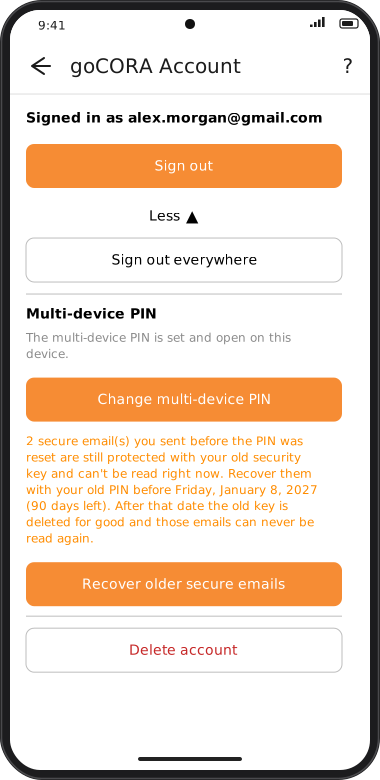
- With your old PIN. When automatic recovery isn't possible, the goCORA account page shows, in orange, how many secure emails are still protected with the old key, the last day you can recover them and how many days are left. Tap Recover older secure emails and type the old PIN.
Opening such a message before it's recovered shows: "This secure message is protected with your old security key… Recover it on your goCORA account page with your old PIN." After the 3 months, the account page says they can't be read any more.
Coming soon: saving a received secure email as plain text
A received secure email's key is already kept with your own multi-device PIN, so the email stays readable without the sender. goCORA will also let you save a received secure email as plain text — kept decrypted on your device, like an ordinary email. This page will be updated when that's available.