Writing, replying & forwarding
In the app: Mailbox › + (or Reply / Reply All / Forward)
Video tutorial:
Read, write and reply in goCORA
(opens in YouTube)
Start a new message with the orange + button in the Mailbox or New message on the home screen. Reply and Reply All open the same screen with the recipient and a Re: subject filled in (and keep the reply in the same conversation); Forward fills in a Fwd: subject and leaves the recipients to you.
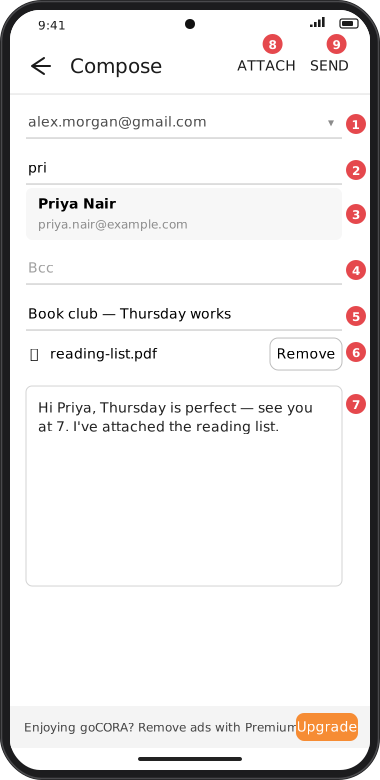
Screens are illustrated with the Android layout; Windows and iOS show the same screens with native styling. Red numbers on a picture match the numbered list or the numbers in the caption for that picture.
- From — pick which of your accounts sends the message.
- To — type one or more addresses separated by commas.
- Suggestions — as you type, matching people from your Contacts appear; tap one to add them.
- Bcc — blind copies: these recipients get the message but aren't shown to others. Suggestions work here too.
- Subject — the subject line.
- Attachments — each attached file is listed with a Remove button.
- Message — the body of your email.
- Attach — pick one or more files from your device to attach.
- Send — sends the message. You need at least one recipient in To.
After you tap Send
- The Confirm when sending an email option in Confirmation Settings is on by default. Turn it off to skip the prompt for messages you send yourself, even when AI is enabled. AI-initiated sends still require confirmation.
- Your message has been sent. confirms success; otherwise the error explains what went wrong (for example a rejected SMTP password — see Re-authenticating an account).
Secure email: tap Secure in the toolbar to encrypt the message with CORA before it's sent
— the button then reads Send Secure. See Secure email (CORA encryption).
Tip: AI can draft a reply for you — open the message, tap ✨ › Suggest Reply, then
Use as draft. See Using AI on a message.
Tip: Once you're writing, tap ✨ in this screen's own toolbar to rewrite your draft in a
different tone or translate it. See Rewriting or translating your draft.