Cloud sync
In the app: Settings › ☁ Cloud sync
With a goCORA subscription, Cloud sync keeps your setup the same on all your devices: add a contact on your phone and it appears on your computer, tag an email on one device and the tag is there on the others. Everything is sealed on your device under your CORA key code before it leaves, so goCORA can't read it.
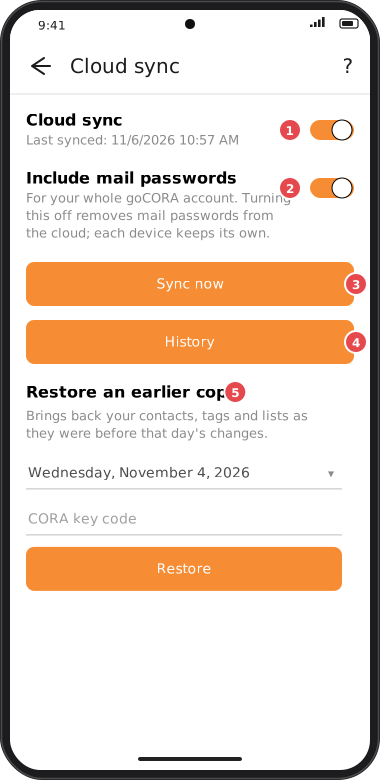
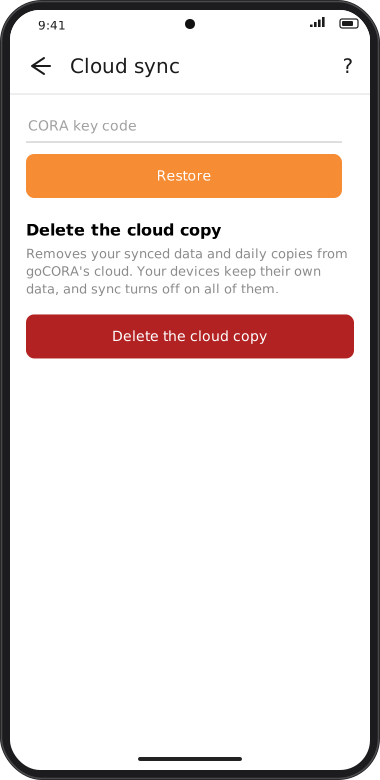
Screens are illustrated with the Android layout; Windows and iOS show the same screens with native styling. Red numbers on a picture match the numbered list or the numbers in the caption for that picture.
What syncs, and what doesn't
| Syncs between your devices | Never synced |
|---|---|
| Mail accounts (their settings, and their passwords if Include mail passwords is on) | Your emails themselves: IMAP mail downloads on each device, POP3 mail stays on the device that downloaded it |
| Contacts and their photos | Microsoft sign-ins: each device signs in once itself (see below) |
| Tags, and which emails they're on | AI assistant keys and settings |
| Blocked senders and domains, and trusted image senders | App settings such as theme, language and lock |
| Folder order and hidden folders | goCORA's own Sent folder (it belongs to each device) |
| Recent recipients (addresses you sent to that aren't contacts — see Compose) |
To keep a copy of POP3 and Sent mail, use an online backup or a local one.
Sync carries only your goCORA account's items. Items on the device without a goCORA account, and other goCORA accounts' items, are never sent to your cloud. Items you didn't keep at Keep these with …? are removed from your cloud (not from the device). See Several goCORA accounts on one device.
Turning sync on
- Sign in to your goCORA account and open secure email (your CORA key code or fingerprint).
- Go to Settings › ☁ Cloud sync and turn the switch on.
- goCORA explains what it keeps the same. Tap Turn on.
On your other devices, goCORA asks Sync this device? the next time secure email opens. Tap Sync: that device's contacts, tags and lists merge with the others. Nothing is lost: an item on only one device is added to all of them, and the same contact already on two devices becomes one.
Cloud sync needs you to be signed in. If you're signed out and tap ☁ Cloud sync, goCORA opens the sign-in page first, then Cloud sync. On a new device goCORA doesn't know about your subscription until you've signed in once, so sign in from Settings › goCORA Account first; otherwise ☁ Cloud sync shows what the subscription offers.
When it syncs
Sync runs whenever secure email is open: when it opens, about 30 seconds after you change something, and regularly while goCORA is open. Last synced shows when this device last finished. Tap Sync now to sync straight away. Most changes simply arrive; nothing pops up. A few kinds of change ask first (see Questions sync asks).
Include mail passwords
With Include mail passwords on, an account added on one device arrives on the others ready to use. It's one setting for your whole goCORA account: turning it off on one device turns it off everywhere and removes the passwords from goCORA's cloud. Each device keeps the password it already has; a new device then needs you to type it once.
If you change an account's password on one device, the new one replaces it on the others without asking. A wrong password can't send your mail anywhere else, it only stops that account connecting until it's corrected.
Mail accounts on a new device
When an account arrives that isn't on this device yet, goCORA shows Synced mail accounts with a tick box for each. Untick any you don't want here and tap Add. An account you leave out stays on your other devices; add it later from the ☁ button on the Mail accounts page.
To add accounts without being asked, turn off Confirm new synced mail accounts in Settings › Confirmations (this device only).
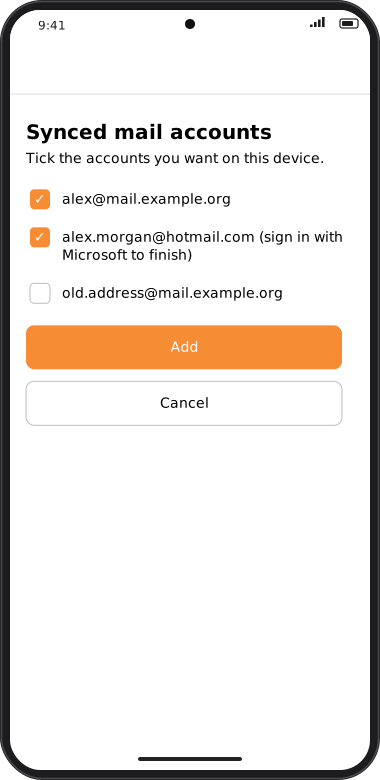
Screens are illustrated with the Android layout; Windows and iOS show the same screens with native styling. Red numbers on a picture match the numbered list or the numbers in the caption for that picture.
Hotmail, Outlook.com and Microsoft 365 accounts sign in through Microsoft, and that sign-in never leaves the device. Tick the account and tap Add: goCORA opens the sign-in for it, with the address filled in. Sign in once and it's added.
Questions sync asks
Changes that could send your mail somewhere else, or delete a lot at once, ask on each device first:
- Mail server changed — an account's server or user name was changed on another device. The device making the change needed your typed CORA key code. Tap Accept if it was you, or Reject to keep this device as it is.
- Mail account removed — an account was removed from all devices on another device (that needed your key code too). Accept removes it here; Reject keeps it on this device only. For a POP3 account, removing it also deletes the mail stored only on this device.
- Many items deleted — when another device deleted 20 or more contacts, tags or list entries, more than half of them, goCORA asks before deleting them here. Answering No offers to turn sync off on this device instead.
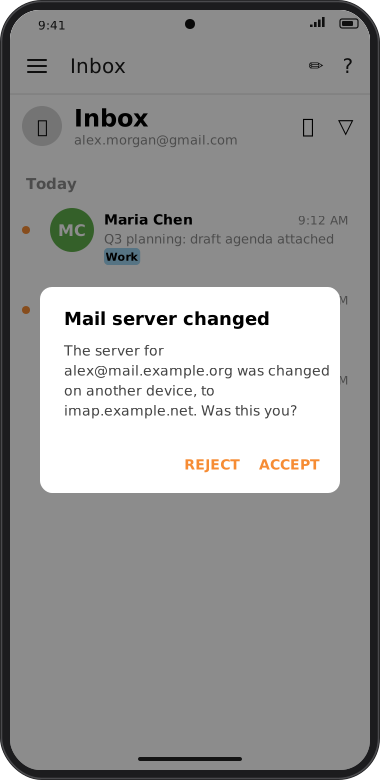
Screens are illustrated with the Android layout; Windows and iOS show the same screens with native styling. Red numbers on a picture match the numbered list or the numbers in the caption for that picture.
Why it works this way
Someone holding one of your unlocked devices could otherwise point your mail account at their own server, or wipe your contacts on every device. Asking for the key code where the change is made, and for an answer on each other device, means a change like that can't spread silently. Everyday changes such as a new contact or a new password still sync without questions.
If you Reject a change you didn't make, another of your devices may be in the wrong hands. Open Your devices and block it, then change your goCORA password.
Restore an earlier copy
goCORA keeps a daily copy of your synced data for 7 days. Under Restore an earlier copy, choose a date, type your CORA key code and tap Restore: your contacts, tags and lists go back to how they were before that day's changes, on all your devices. Mail accounts aren't included: they follow their own rules above.
History
Tap History to see what this device sent and received, newest first:
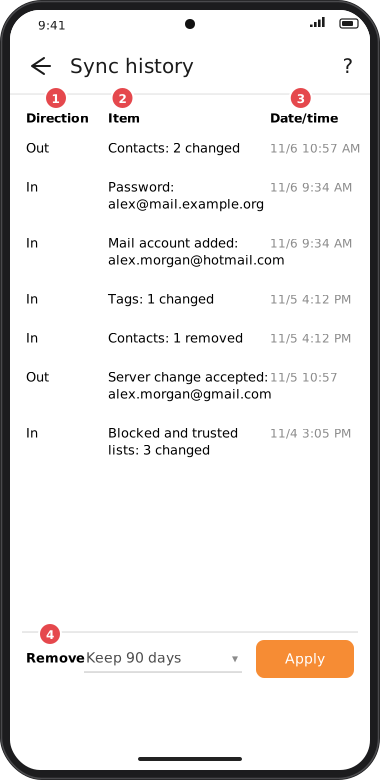
Screens are illustrated with the Android layout; Windows and iOS show the same screens with native styling. Red numbers on a picture match the numbered list or the numbers in the caption for that picture.
- Direction — In from your other devices, Out from this one.
- Item — one line per kind of item each time, with a count (for example "Contacts: 3 changed"; new items count as changed). Mail accounts, passwords and folders show the email address. Removals are listed too. History also records restoring an earlier copy, your Accept and Reject answers, accounts you added and deleting the cloud copy.
- Date/time — when it happened.
History never shows a password or a contact's name. Items that were skipped, failed or are waiting for your answer aren't listed, because they didn't sync. The list stays on this device, encrypted; it isn't synced or backed up.
History is kept until you remove it. At the bottom, choose Keep 180 days, Keep 90 days, Keep 30 days or Clear all, then tap Apply. goCORA remembers your choice; Clear all asks before clearing.
Delete the cloud copy
Delete the cloud copy removes your synced data and its daily copies from goCORA's cloud, and turns sync off on all your devices. Each device keeps its own data. It needs a recent sign-in. It doesn't delete your online backups: delete those under Manage online backups.
Good to know
- Sync runs on your main account's devices. A device signed in with your backup account doesn't sync.
- If a device last synced with another goCORA account, goCORA asks before starting fresh with this one.
- A replacement device needs your recovery code once, then your key code, before it can sync.
- If your subscription ends, nothing is lost on your devices; sync simply stops. See the subscription.