Your devices and security alerts
In the app: Settings › goCORA Account › Manage your goCORA account › 📱 Your devices
goCORA keeps track of the devices where secure email was opened on your goCORA account (and its backup account), and tells your other devices when something important happens on one of them. If you don't recognize it, you can block that device in a few taps.
Your devices
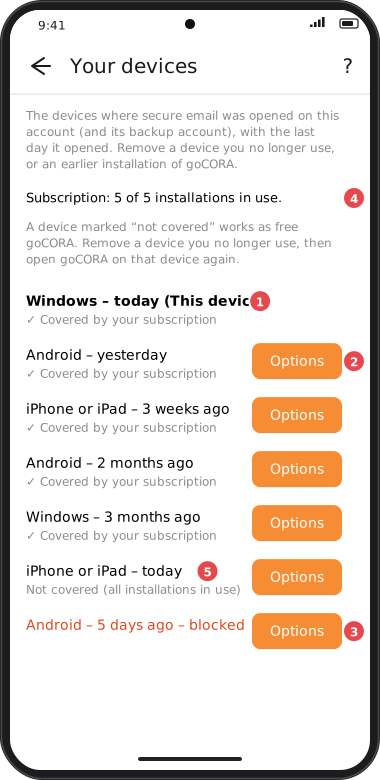
Screens are illustrated with the Android layout; Windows and iOS show the same screens with native styling. Red numbers on a picture match the numbered list or the numbers in the caption for that picture.
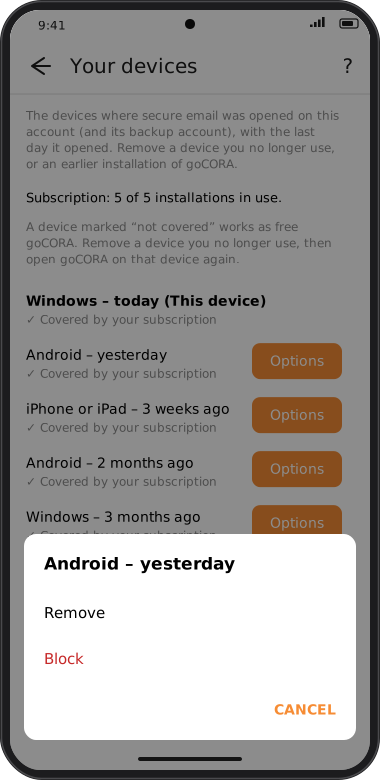
Your devices lists each device with its type (Windows, Android, iPhone or iPad…) and the last day secure email opened on it. (This device) marks the one you're holding. Tap Options next to another device to:
- Remove — for a device you no longer use, or an earlier installation of goCORA (reinstalling creates a new entry). A device still in use is added back the next time secure email opens on it. Devices not seen for a year are removed automatically.
- Block — for a device you don't recognize, or one that was lost or stolen. See Blocking a device.
- Unblock — shown for a blocked device. It can use secure email again after it signs in.
With a subscription: which devices it covers
A subscription covers goCORA on up to 5 installations. 4 The line at the top shows how many are in use, and each device says ✓ Covered by your subscription or 5 Not covered (all installations in use). A device that isn't covered works like free goCORA.
- Each installation counts once, in the order the devices first registered. Reinstalling goCORA, or a new test device, is a new installation, so old entries add up.
- To free an installation, Remove a device you no longer use (uninstalling goCORA doesn't free it; Erase goCORA from this device does).
- A blocked device doesn't count. It can't be removed (so it can't come back), but blocking it frees its installation at once — useful after a theft: your new phone is covered. If you unblock it later, it asks for an installation again the next time it opens, and gets one only if one is free.
- Then close and reopen goCORA on the device that wasn't covered: it takes the free installation when it next registers.
A new device can join only within 10 minutes of a real sign-in (goCORA password, plus the authenticator code if you use one). If that sign-in was longer ago, goCORA asks for your password again first. A stolen sign-in session alone can't add a device.
"Was this you?"
goCORA asks on your other devices when, on one of your devices:
- a new device started using secure email;
- your CORA keys were opened for the first time on a device;
- your CORA key code was entered after the device's fingerprints or face changed;
- your recovery code was replaced;
- two-step sign-in was turned on or off in the goCORA app (changes made on the website aren't reported, since it isn't one of your devices).
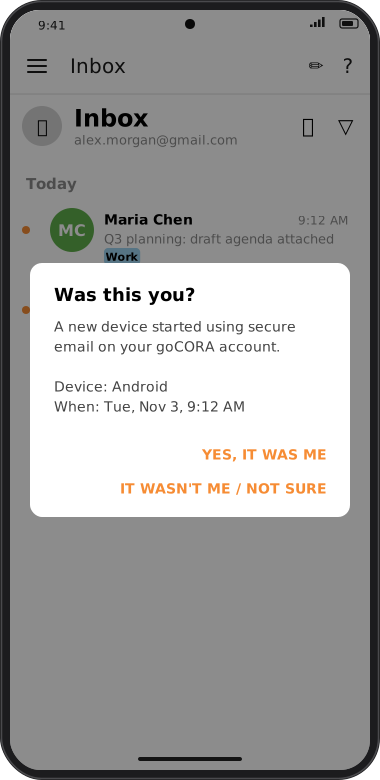
The question shows the device and when it happened. It appears when goCORA starts, comes back to the front, or opens secure email; on Android and iPhone a notification tells you even when goCORA is closed:
Screens are illustrated with the Android layout; Windows and iOS show the same screens with native styling. Red numbers on a picture match the numbered list or the numbers in the caption for that picture.
- Yes, it was me — the alert is closed on all your devices.
- It wasn't me / not sure — goCORA asks "Block that device now? You can also decide later.": No, block it (see below) or Ask me later (asked again next time).
Blocking a device
- Choose No, block it in an alert, or Options › Block in Your devices, and confirm.
- Enter your goCORA password (and authenticator code, if asked).
- The device is blocked at once: it can no longer send, read or share secure-email keys. The next time it reaches goCORA's service it's signed out of goCORA, with a message saying it was blocked.
- goCORA emails you a link to change your goCORA password. Change it now: that signs the device out everywhere.
- If someone may know your CORA key code, tap Change key code when goCORA offers it — see Changing your key code.
If two of your devices try to block the same device, the first one does it; the second just sees it's already blocked. To undo a block, use Options › Unblock on another device (your password is needed again). The unblocked device then signs in and enters your key code as usual; it doesn't need the recovery code again.
"Security key warning"
Your goCORA account has a security key that other people's goCORA uses to make sure a key request really comes from you. Your devices check from time to time that goCORA's key service shows the same security key as the one saved with your account. If it doesn't, and you didn't reset your CORA key code with a new recovery code, goCORA shows Security key warning, puts your own key back, and asks you to contact goCORA support if it happens again.