CORA key code and recovery code
In the app: Settings › goCORA Account › Manage your goCORA account › More › 🔐 CORA key code
Your secure emails are protected by keys that only your devices can open. goCORA's CORA encryption splits what opens them into pieces: one kept on your device, one in goCORA's cloud, one with a separate goCORA service, and the one only you know — your CORA key code. No single company, not even goCORA's cloud providers, holds enough to open your keys.
You keep two things:
- Your CORA key code — at least 8 characters that you choose and type. Every device you sign in on with your goCORA account opens your secure email with it. It is not your goCORA password.
- Your recovery code — 28 characters (7 groups of 4) that goCORA gives you once, when you set your key code. You write it down and keep it away from your devices. A new device can be approved from one where secure email is open (Add a new device); only without such a device does it need your recovery code, once. The recovery code also lets you choose a new key code if you forget yours. It never opens your keys by itself: your key code is always needed too.
What the section shows
The 🔐 CORA key code section of the goCORA account page (under More) shows where things stand on this device. Its lock icon is open when secure email is open here.
| The section says… | What it means and what you can do |
|---|---|
| No CORA key code yet. | Tap Set CORA key code — see Setting your key code. |
| …add it from another device where secure email is open (or use your recovery code), then enter your key code. | This device hasn't opened secure email yet. Tap Set up secure email on this device — see On a new device. |
| Your CORA key code is set. Enter it to use secure email on this device. | Tap Enter CORA key code. If you've forgotten it, see Forgot your key code? |
| Secure email is open on this device (CORA key code). | Everything is in place. From here you can Change CORA key code, Add a new device, use Recovery code or Forgot your key code? |
| 🔒 Secure email is locked. | goCORA locked after a while without use or when it went to the background. Tap Unlock secure email. See Lock, sign-in and biometrics. |
| Offline: opened from this device's own copy. | goCORA's services couldn't be reached, so this device used its own protected copy. Changes made on your other devices arrive when you're back online. |
| This is a backup account… | A backup account uses your main account's key code. Only the main account can set it, reset it or get a new recovery code. |
| Couldn't check your CORA key code. | goCORA couldn't reach its server. Tap Check again. |
| "N secure email key(s) on this device are protected with an older security key that is gone (after a Reset). Those emails can't be read any more." | Left over from a Reset. Tap Remove unreadable keys to tidy up — see below. |
Setting your key code
- Sign in, tap More, then Set CORA key code.
- Choose your key code and type it twice. It needs at least 8 characters, including a letter. A short phrase like blue7train works well. goCORA shows how hard it is to guess (Easy to guess, Good, Strong) and refuses key codes that are too common, your email name, or the same as your goCORA password.
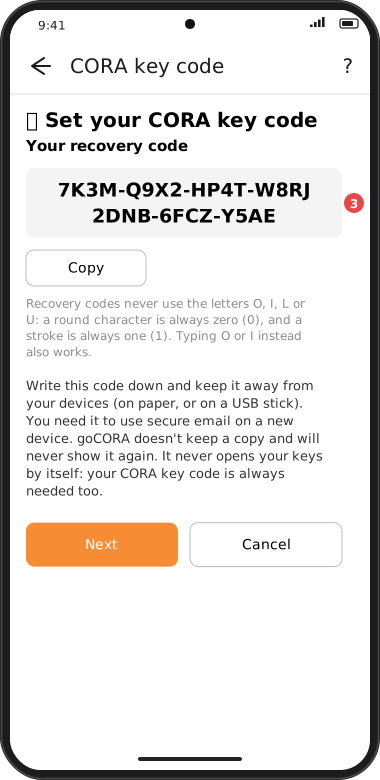
- goCORA shows Your recovery code. Write it down on paper (or save it on a USB stick) and keep it away from your devices. goCORA doesn't keep a copy and will never show it again.
- To check you have it, type groups 3 and 6 of the code.
- Confirm it's you with your goCORA password (and your authenticator code, if asked), then tap Save. Saving takes a moment — on purpose, to make guessing slow.
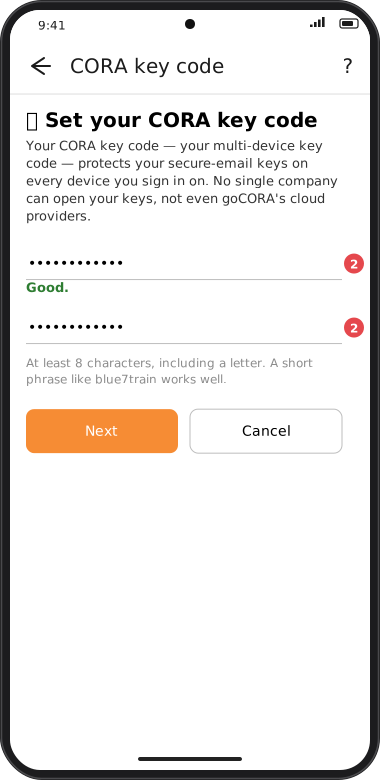
Screens are illustrated with the Android layout; Windows and iOS show the same screens with native styling. Red numbers on a picture match the numbered list or the numbers in the caption for that picture.
goCORA confirms "Your CORA key code is set. Secure email is open on this device."
About the recovery code
- Reading it: recovery codes never use the letters O, I, L or U. A round character is always zero (0) and a stroke is always one (1); typing O or I instead also works. Dashes, spaces and capitals don't matter. A typo is caught and goCORA tells you which group to check.
- Copy puts it on the clipboard for 60 seconds. Paste it straight into a password manager that encrypts its data, or into a file on another device. Don't paste it into an email, a chat or a notes app that syncs to the cloud, and don't keep it only on the same device.
Why at least 8 characters: your key code is never used on its own — it only works together with your signed-in goCORA account, the piece on your device and the pieces in goCORA's services. For a secret used as part of several factors, the US guidance NIST SP 800-63B-4, §3.1.1.2 sets a minimum of 8 characters and asks that common choices be refused, as goCORA does. goCORA also asks for at least one letter, a deliberate step beyond that guidance: a key code of digits only, like 12345678, has just 100 million possibilities, too few for a secret that must hold even if someone has stolen the other pieces.
On a new device
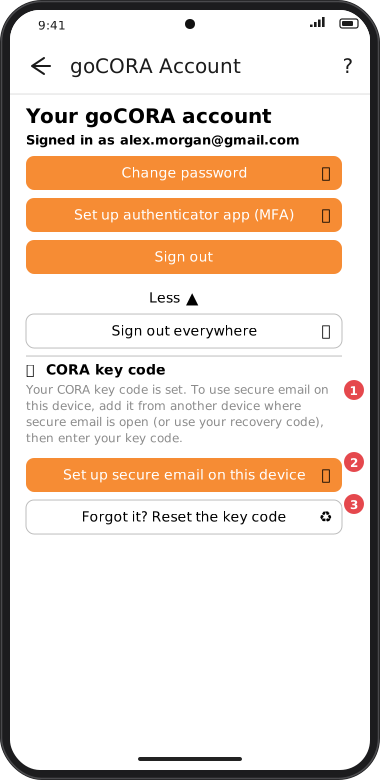
Screens are illustrated with the Android layout; Windows and iOS show the same screens with native styling. Red numbers on a picture match the numbered list or the numbers in the caption for that picture.
- Install goCORA and sign in to your goCORA account.
- Tap Set up secure email on this device and choose how this device gets its piece:
- Add this device using another device — approve it from a device where secure email is open; no recovery code needed. See Adding another device.
- Use my recovery code — type it once (on this device only).
- Then type your CORA key code.
- Secure email opens. From then on this device needs only your key code (or nothing at all, depending on the key code setting).
Your other devices are told that a new device started using secure email ("Was this you?") — see Your devices and security alerts.
Why it works this way
Your secure email is protected by pieces that are kept apart: some on your devices, some in goCORA's cloud with two different companies, and your key code in your head. No single piece — and no single company — can open it.
A new device has none of the device pieces yet. One of your other devices can send it, locked so only the new device can open it, after you compare a code on both screens and confirm your goCORA password there. Without another device, your recovery code stands in for it, once. Your key code is needed either way. So someone who steals your goCORA password still can't add a device and read your secure email: they'd also need your approval on one of your devices (or your recovery code) and your key code.
Changing your key code
On a device where secure email is open, tap Change CORA key code, type your current key code, the new one twice, and confirm with your goCORA password. Nothing becomes unreadable. Your other devices ask for the new key code once, the next time they open secure email.
Backups made before the change can still be restored for 30 days (with a subscription, for as long as you're subscribed); goCORA offers to make a new backup right away. See Backups.
Forgot your key code?
If secure email is still open on one of your devices, use that device: tap Forgot your key code?, type your recovery code and goCORA password, and choose a new key code. Nothing is lost. Your other devices ask for the new key code once.
On a device that is asking for the key code, goCORA shows this advice too, next to Forgot it? Reset the key code.
Why it works this way
goCORA can't look up or reset your key code for you: it never leaves your devices, and goCORA's cloud only keeps pieces that can't be opened without it. That's what keeps your secure email private — even from goCORA — and it's also why nobody can recover it for you.
A device where secure email is still open already holds what's needed, so it can set a new key code without losing anything. That's why a second device is the best protection against forgetting.
Reset (last resort)
- On a device that asks for the key code, tap Forgot it? Reset the key code.
- goCORA explains what Reset does, lists the devices where secure email was open recently ("⚠ Secure email was open recently on: …") and how many secure emails on this device will no longer open. If secure email is still open on one of those devices, cancel and use that device instead. Otherwise, to confirm, type RESET.
- Choose I have my recovery code (and type it), or I lost my recovery code too (goCORA then gives you a new recovery code to write down, as when you first set the key code).
- Choose your new key code and confirm with your goCORA password.
The people you exchange secure email with: after a Reset with your recovery code, nothing changes for them. After a Reset with a new recovery code, your account gets a new security key, and the next time you ask one of them for a key their goCORA shows "The security key of … has changed" and asks them before answering — see When someone's security key changes. You may want to tell them.
A backup account can't reset the key code: sign in with your main account to do it.
Remove unreadable keys
After a Reset, the section may say that some secure-email keys on this device can no longer be opened. Remove unreadable keys tidies them up. Secure emails you received can then be asked for again from their senders; secure emails you sent before the Reset stay unreadable either way. If goCORA still keeps an older copy that might recover them, it says so and removes nothing.
Your recovery code: checking it or getting a new one
On a device where secure email is open (main account only), tap 🔑 Recovery code. You have two choices:
- Get a new recovery code — whether you lost it or someone may have seen it. You get a new recovery code to write down. The old code, and anything copied with it, stops working. Your other devices update by themselves the next time they open secure email (within 30 days; with a subscription, however long they were off), and your key code stays the same.
- Just checking it still works — type the code; goCORA only checks it and changes nothing.
Your other devices are told that the recovery code was replaced ("Was this you?").
"Do you still have your recovery code?"
Every 7 months, goCORA asks this a few seconds after it starts or comes back to the front (never while you're writing an email). A code that's lost without you noticing would mean a Reset if you ever forget your key code.
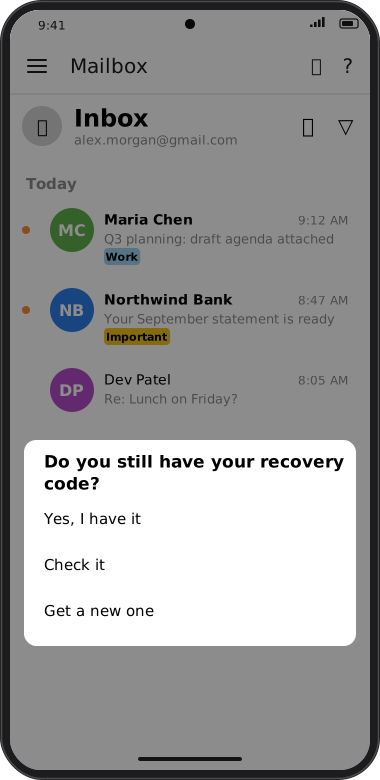
Screens are illustrated with the Android layout; Windows and iOS show the same screens with native styling. Red numbers on a picture match the numbered list or the numbers in the caption for that picture.
- Yes, I have it — asked again in 7 months.
- Check it — type it; nothing changes.
- Get a new one — as above: the old code stops working, the key code stays the same.
Closing the question without answering asks again 24 hours later. Checking the code, typing it on a new device or for Forgot your key code?, or getting a new one also restarts the 7 months. Only the main account is asked, while signed in to goCORA. It's a reminder on each device; nothing is sent anywhere.
Wrong key codes
To stop someone holding your unlocked device from guessing:
- After 5 wrong key codes in a row, goCORA makes you wait 30 seconds, then 1 minute, then 5 minutes before each further try.
- After 10 wrong in a row, goCORA signs out of your goCORA account on that device. Sign in again with your goCORA password (and 2-step code) to open secure email; biometrics can't bring the old session back.
- A correct key code or a correct sign-in starts the count again. A wrong recovery code doesn't count.
How often goCORA asks for your key code
That's up to you, per device: Settings › goCORA Account › CORA key code on this device — Remember on this device, Ask after goCORA locks, Ask when I sign in or Ask every time I unlock. See Lock, sign-in and biometrics.