Add a new device
In the app: new device: goCORA account › Set up secure email on this device · other device: goCORA account › 📱 Add a new device
Use this when you get a new phone, add a tablet or computer, or reinstall goCORA. It sets up secure email on the new device; your mail accounts come over separately (see After it's added).
What you need
- The new device, with goCORA installed and signed in to the same goCORA account (or its backup account).
- Another device where secure email is open — or can be unlocked with your fingerprint, face or key code.
- Your goCORA password (and authenticator code, if you use one) and your CORA key code.
1. On the new device
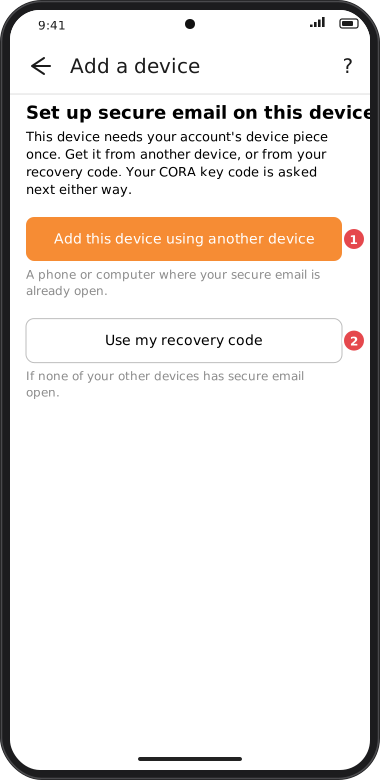
On the new device:
- Install goCORA and sign in to the same goCORA account (or its backup account).
- When goCORA offers to set up secure email (or on the goCORA account page, tap Set up secure email on this device), tap 1 Add this device using another device.
- goCORA waits for your other device. Leave this screen open.
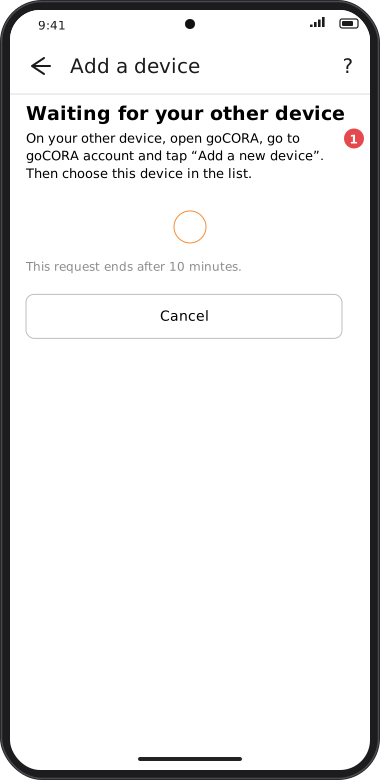
2. On your other device
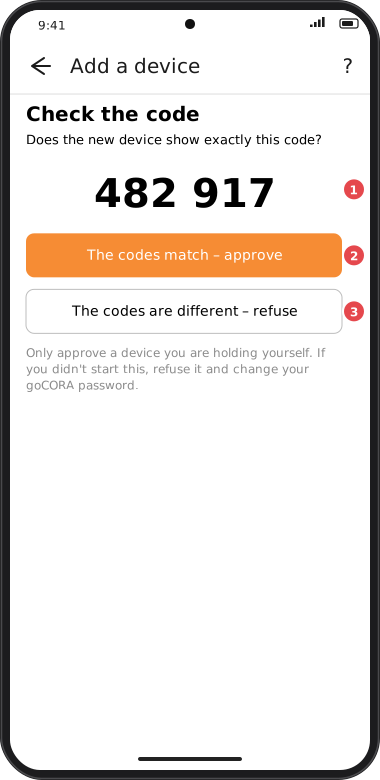
On your other device (where secure email is open):
- Open goCORA, go to the goCORA account page and tap 📱 Add a new device. If secure email is locked, goCORA unlocks it first (fingerprint, face or key code).
- Tap the new device in the list (for example Android · asked at 9:41).
- Both screens now show the same 6-digit code 1. Check that they match exactly.
- Tap 2 The codes match – approve and confirm your goCORA password (and the authenticator code, if you use one). If they don't match, tap 3 The codes are different – refuse.
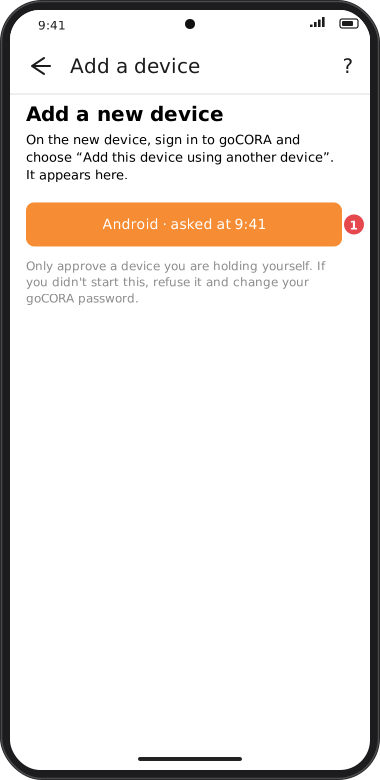
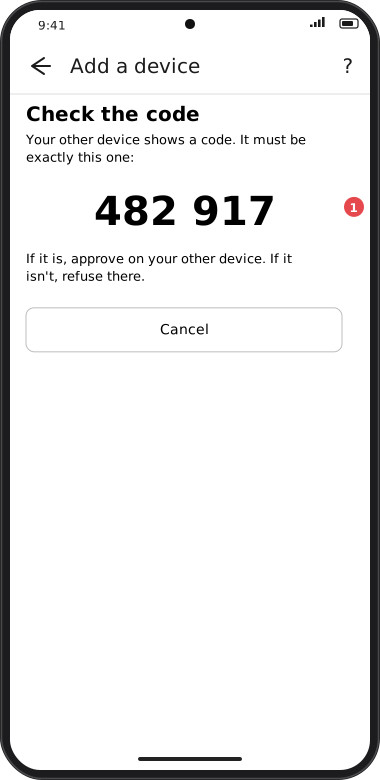
Screens are illustrated with the Android layout; Windows and iOS show the same screens with native styling. Red numbers on a picture match the numbered list or the numbers in the caption for that picture.
3. Back on the new device: your CORA key code
The new device says the device is added. Type your CORA key code: secure email opens. From then on this device needs only your key code — or nothing, depending on its key code setting. Your other devices are asked "Was this you?" about the new one — see Your devices and security alerts.
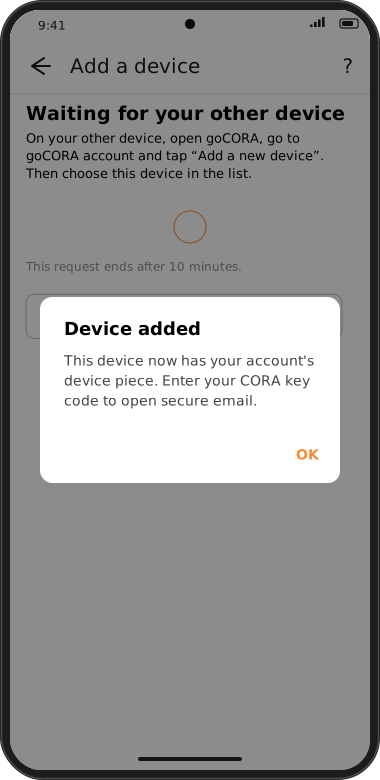
No other device with secure email open?
On the new device, tap Use my recovery code, type it, then your CORA key code — see On a new device. Don't tap Forgot it? Reset the key code unless you've lost your key code and secure email isn't open on any device — see Forgot your key code? first.
If it doesn't work
| What you see | What to do |
|---|---|
| The new device isn't in the list on the other device. | Check both are signed in to the same goCORA account (or its backup account), that the new device still shows Waiting for your other device, and wait a few seconds — the list updates by itself. |
| This request has ended. | A request lasts 10 minutes and works once. Start again on the new device. |
| The two codes are different. | Tap The codes are different – refuse. If you didn't start this request, change your goCORA password. |
| Secure email must be open on this device… | Open secure email on the other device first (unlock it, or enter your key code there), then tap Add a new device again. |
| goCORA asks for your password on the new device. | A new device can join only within 10 minutes of a real sign-in (password + authenticator code). Confirm it and carry on. |
Why it works this way
A new device is missing one of the pieces that protect your secure email: the one your devices keep. Your other device sends it, locked so that only the new device can open it; goCORA's key service passes it on but can't read it. The new request ends after 10 minutes and works once.
The matching code proves the two screens are really talking to each other. Each device adds a random number. The new device locks in its number before it sees the other one, and the other device sees that lock before it sends its own, so nobody in between — not even goCORA's service — can make two different conversations show the same code (one chance in a million).
Approving needs your goCORA password (a real sign-in in the last 10 minutes), so someone who picks up your unlocked phone can't approve a device for themselves.
After it's added
- Mail accounts and settings: restore a backup, or with a subscription let Cloud sync bring them.
- Subscription: each device uses one of your subscription's installations — see which devices it covers.
- More about using goCORA on several devices: Multiple device setup.