Multiple device setup
In the app: Settings › goCORA Account › Manage your goCORA account › More › Multi-device PIN
goCORA runs on Windows, Android and iOS, and you can use it on as many of your devices as you like — your PC at the office, your phone, your tablet. Your goCORA account is what ties them together.
Why use goCORA on more than one device
- One identity everywhere. Sign in with the same goCORA email address and password on every device.
- Your encrypted data opens on each of them. goCORA's CORA encryption keeps part of your encryption key in the cloud with your goCORA account, so every device you sign in on can use it — not just the one where you started.
- Easy to add or replace a device. On a new phone or computer, install goCORA, sign in and enter your multi-device PIN once. You can also restore a backup made on another device.
- You stay in control. If a device is lost, Sign out everywhere (under More) on the goCORA account page signs every device out at once.
Why a separate PIN?
The cloud part of your key is protected by a multi-device PIN that you choose. It is deliberately not your goCORA password:
- goCORA encrypts the cloud part with your PIN on your device before it is saved. The PIN itself never leaves your devices, so neither goCORA's servers nor anyone who reads the stored copy can open it.
- Someone who learns your goCORA password still can't open your encrypted data without the PIN.
- Each guess at the PIN is made slow on purpose, which makes guessing impractical.
Setting it up
- On your first device, create or sign in to your goCORA account.
- On the goCORA account page, tap More, then Set multi-device PIN, type your PIN twice and tap Save.
- On each other device, install goCORA and sign in to the same goCORA account. goCORA asks for the PIN right away: tap Enter PIN, type it and tap Open. (Tap Later to do it from the goCORA account page instead.)
- That's it: each device remembers the PIN securely and opens your data automatically from then on.
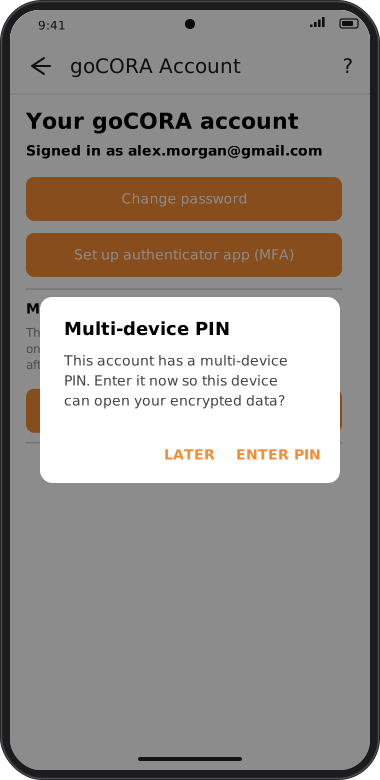
Screens are illustrated with the Android layout; Windows and iOS show the same screens with native styling.
Next steps
Every multi-device PIN action — setting, entering, changing and resetting it, and what each message means — is described under Multi-device PIN in Managing your goCORA account.