Backing up & restoring
In the app: Settings › goCORA Settings › Accounts
Video tutorial:
Back up and restore goCORA
(opens in YouTube)
goCORA keeps everything on your device, encrypted with a key that only exists on that device. A backup has two parts, and you need both to restore onto a new or reset device:
- Encryption Key — the key that unlocks your data (saved as a
.txt.encfile). - Database — your accounts, tags, contacts, downloaded mail and settings (saved as
gocora-backup-date.zip.enc).
Both are in Settings › goCORA Settings › Accounts. You must be signed in to a goCORA account with a verified email — items marked 🔒 are locked until you are.
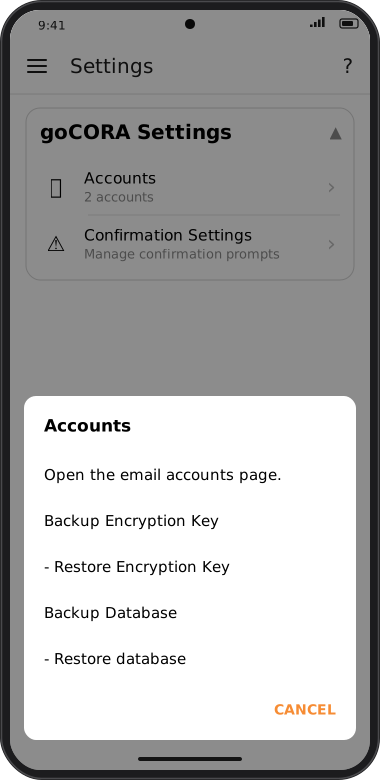
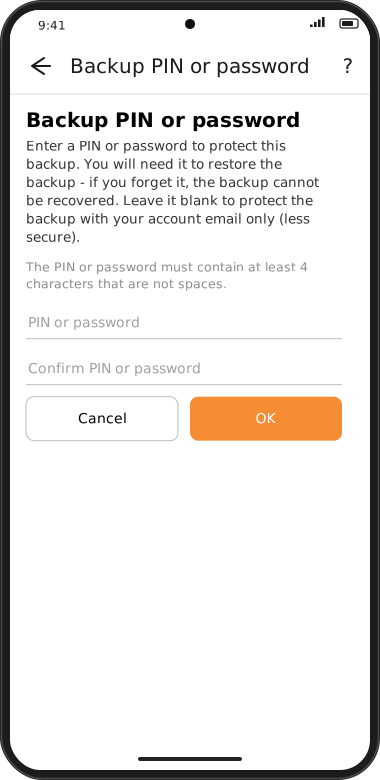
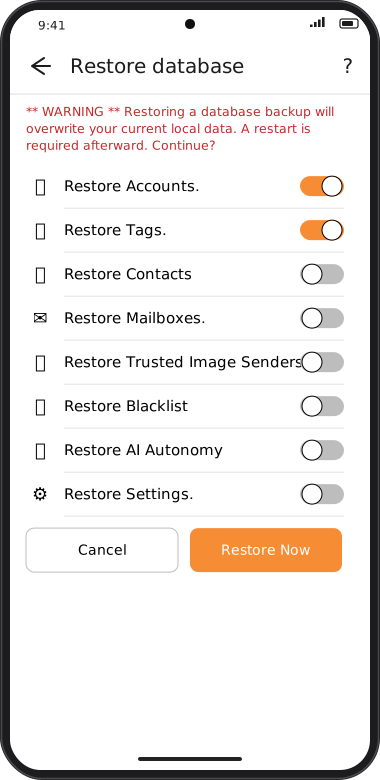
Screens are illustrated with the Android layout; Windows and iOS show the same screens with native styling. Red numbers on a picture match the numbered list or the numbers in the caption for that picture.
Making a backup
- Tap Backup Encryption Key.
- Enter a PIN or password (at least 4 non-space characters) twice. You'll need it to restore — if you forget it, the backup can't be recovered. Leaving it blank protects the backup with your account email only; goCORA asks you to confirm that weaker choice.
- Choose where to save the file (for example cloud storage or a USB drive).
- Repeat with Backup Database.
Restoring
Restoring overwrites the matching data on this device, and goCORA must be restarted afterwards.
Restoring only an encryption key makes your current data unusable — only do that when you're about to restore a database made with that key.
- On a new device, first tap Restore Encryption Key, enter the backup's PIN/password, pick the key file and confirm.
- Tap Restore database. On the Restore screen switch on only what you want back: Accounts (with passwords), Tags, Contacts, Mailboxes (downloaded mail for all accounts), Trusted Image Senders, Blacklist, AI Autonomy, AI Summary Cache (previously generated summaries, extracted details and attachment analyses, so re-opening a message or attachment you already asked the AI about shows it instantly instead of asking the AI provider again) and Settings (theme, language, sign-in requirement, privacy/confirmation options).
- Tap Restore Now, enter the PIN/password, and pick the backup file.
- Close goCORA completely and open it again.
Your email itself always stays on your mail server — a restored account downloads anything missing when it syncs.