Require sign-in & biometric unlock
In the app: Settings › goCORA Account
Both options are in Settings › goCORA Account.
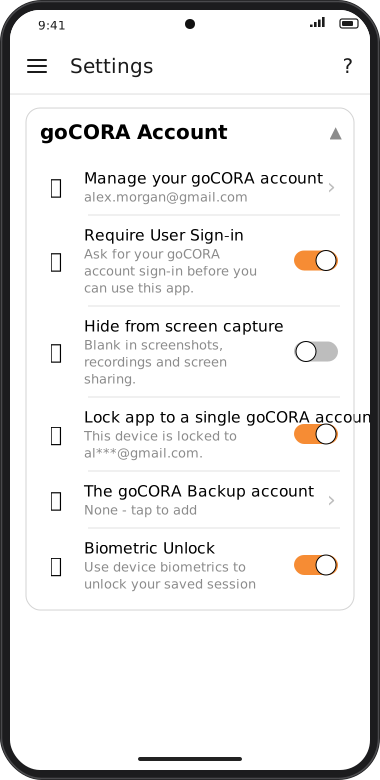
Screens are illustrated with the Android layout; Windows and iOS show the same screens with native styling. Red numbers on a picture match the numbered list or the numbers in the caption for that picture.
🔐 Require User Sign-in
When on, goCORA asks you to sign in to your goCORA account every time the app is started from scratch (after it was fully closed, or the device restarted) before showing any mail. Switching away from goCORA and coming back — from the lock screen or another app — does not ask again while goCORA is still running.
- To turn it on you must be signed in during this session. If you aren't, goCORA takes you to the sign-in screen and switches the option on once you've signed in.
- Turning it off never signs you out.
- Without a goCORA account, create one first — see Managing your goCORA account.
🔓 Biometric Unlock
Lets you use your device's fingerprint or face recognition to unlock your saved goCORA session instead of typing your password, and adds Use biometric to sign in to the sign-in screen. If your device has no biometrics set up, goCORA tells you and leaves the option off — set up fingerprint/face unlock in your device settings first.