Two-factor authentication (MFA)
In the app: Settings › goCORA Account › Manage your goCORA account › Set up authenticator app (MFA)
Two-factor authentication (also called MFA or two-step verification) asks for a 6-digit code from an authenticator app on your phone every time you sign in to your goCORA account, so a stolen password alone isn't enough.
Turning it on
- Make sure your goCORA account email is verified. If it isn't, goCORA sends you a new verification link — verify, then come back.
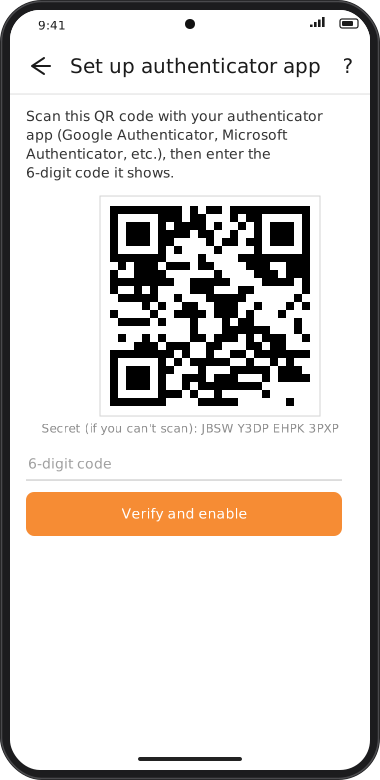
- Go to Settings › goCORA Account › Manage your goCORA account and tap Set up authenticator app (MFA).
- Scan the QR code with your authenticator app. If you can't scan, type the Secret shown under the code into the app instead.
- Enter the 6-digit code your app shows and tap Verify and enable.
- goCORA confirms MFA enabled: from now on the code is required at sign-in.
Turning it off
- Go to Settings › goCORA Account › Manage your goCORA account. Once an authenticator app is set up, the button reads Turn off authenticator app (MFA).
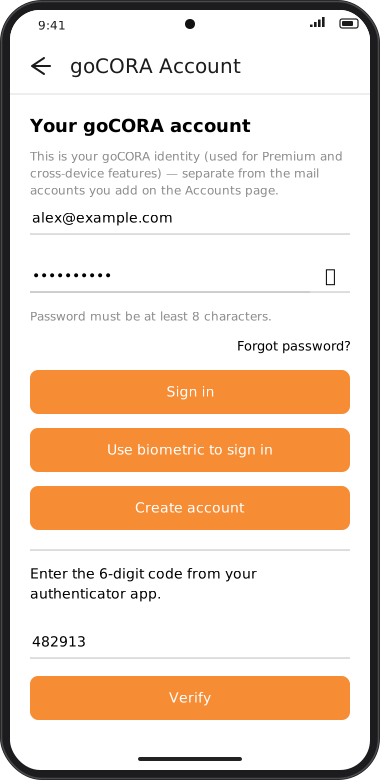
- Tap it, then enter your goCORA password and a current 6-digit code from your authenticator app.
- Tap Turn off. Signing in now needs only your password.
- Optionally delete the goCORA entry from your authenticator app. You can turn two-factor back on at any time.
Lost your phone? You can't turn it off without a code. Contact [email protected] from your account email for help.
Screens are illustrated with the Android layout; Windows and iOS show the same screens with native styling. Red numbers on a picture match the numbered list or the numbers in the caption for that picture.
If goCORA says “That verification code is incorrect”, check your phone's clock is set automatically and use the newest code.