Deleting your goCORA account
In the app: Settings › goCORA Account › Manage your goCORA account › More › Delete account
Go to Settings › goCORA Account › Manage your goCORA account, tap More, then tap Delete account.
Screens are illustrated with the Android layout; Windows and iOS show the same screens with native styling. Red numbers on a picture match the numbered list or the numbers in the caption for that picture.
What is deleted
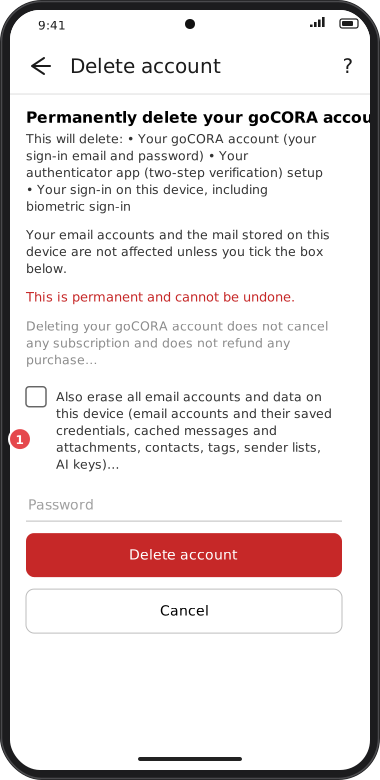
- Your goCORA account (sign-in email and password).
- Your authenticator app (two-step verification) setup.
- Your sign-in on this device, including biometric sign-in.
- Your secure email security key (and any older keys kept after a PIN change or reset): secure emails can no longer be opened with this account.
- What goCORA's secure email service keeps for your account: your registered devices, this month's count of secure emails and the link to your backup account.
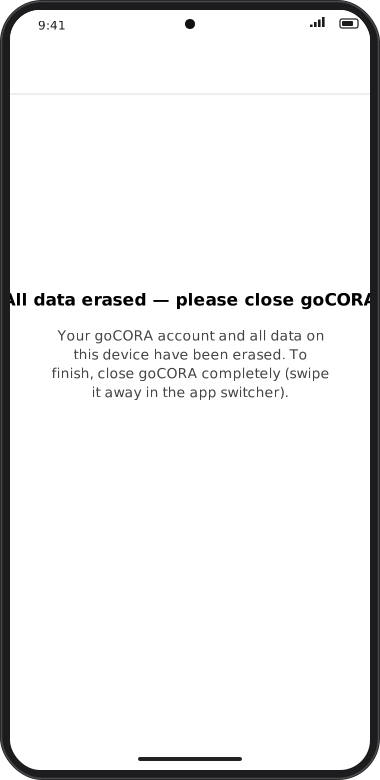
Your email accounts and the mail stored on this device are not affected unless you tick Also erase all email accounts and data on this device (1). That also removes saved mail-account credentials, cached messages and attachments, contacts, tags, sender lists and AI keys, after which you must close goCORA completely and reopen it. Your email itself always stays with your email provider.
Steps
- Read the summary and, if you want, tick the erase box.
- Enter your password and tap Delete account.
- If you use MFA, enter your 6-digit code and tap Delete account again.
If something goes wrong (wrong password, no connection, session expired) goCORA says so. Your goCORA account itself is deleted last, only after everything else above: if the connection drops part way, tap Delete account again to finish.