Managing your mail accounts
In the app: ☰ › Accounts
Video tutorial:
Managing mail accounts in goCORA
(opens in YouTube)
The Accounts screen lists every email account you've added to goCORA on this device. Open it from the side menu (Accounts), from the home screen, or from Settings › goCORA Settings › Accounts › Open the email accounts page.
These are your mail accounts (Gmail, Outlook, your own domain…). Your goCORA account — used for
Premium, backups and AI — is separate: see Managing your goCORA account.
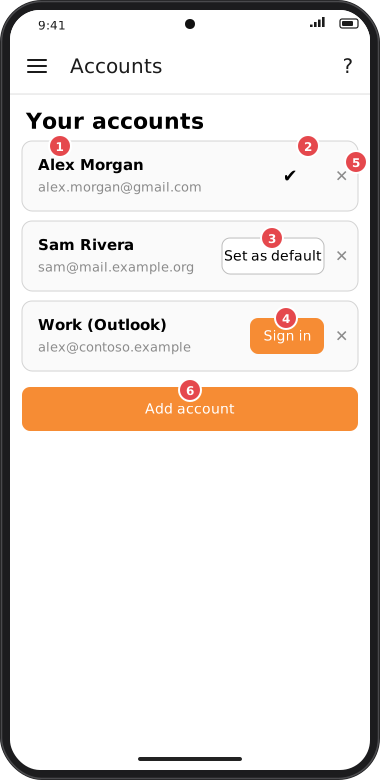
Screens are illustrated with the Android layout; Windows and iOS show the same screens with native styling. Red numbers on a picture match the numbered list or the numbers in the caption for that picture.
- Tap an account to edit its settings (password, servers, ports) on the Connect your email account screen.
- ✔️ marks the account goCORA is currently using.
- Set as default — makes that account the active one and returns to the home screen.
- Sign in — shown when an account that uses Microsoft sign-in needs you to sign in again.
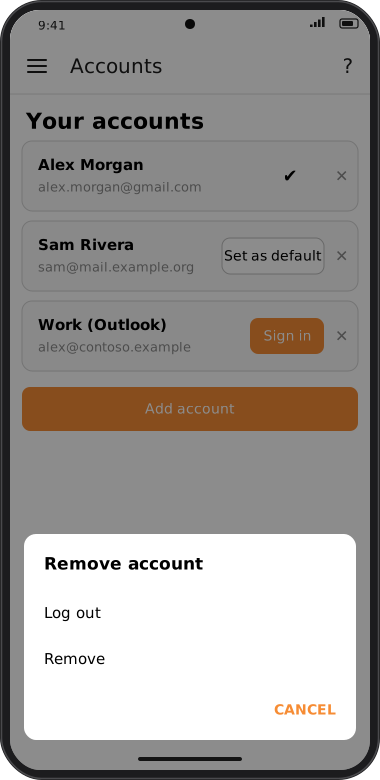
- ✕ — log out of or remove the account (see below).
- Add account — add another email account.
Log out or Remove?
| Option | What it does |
|---|---|
| Log out | Disconnects the account on this device but keeps its saved settings, so you can sign in again later. For Microsoft accounts the sign-in tokens are cleared, so a Sign in button appears. |
| Remove | After you confirm, deletes the account from goCORA together with the mail, folders and tags goCORA stored for it on this device. Nothing is deleted on your mail server. |
If you log out of or remove your last account, goCORA returns to the Connect your email account screen.