The “Connect your email account” screen
In the app: Accounts › Add account (or tap an account)
Video tutorials:
Connect Gmail to goCORA
· Connect Outlook and other providers to goCORA
(opens in YouTube)
This screen adds a new email account to goCORA, or edits one you've already added. It opens automatically the first time you use goCORA, when you tap Add account on the Accounts screen, and when you tap an existing account there.
The top of the screen
- Provider preset — choose Gmail, Outlook / Office 365, iCloud or Yahoo to fill in the server names and ports for you, or keep Custom to enter them yourself.
- Display name — the name recipients see on mail you send.
- Email address — the full address of the account.
- Password / app password — your mail password or, for Gmail and many Outlook/iCloud/Yahoo accounts, an app password. Tap 👁 to show or hide what you typed. Choosing the Gmail preset shows a reminder with a link to Google's instructions — see Gmail / IMAP with an app password.
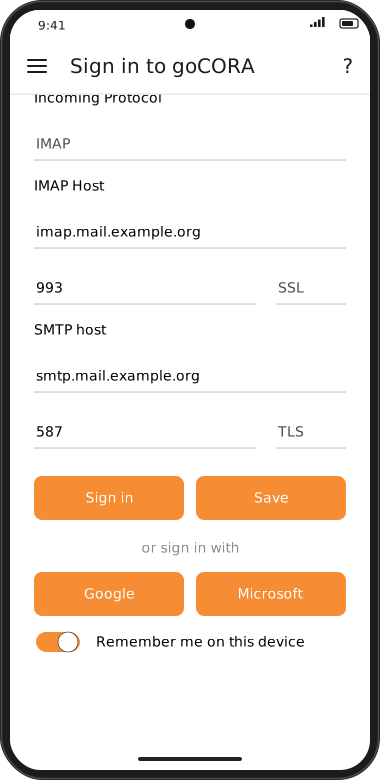
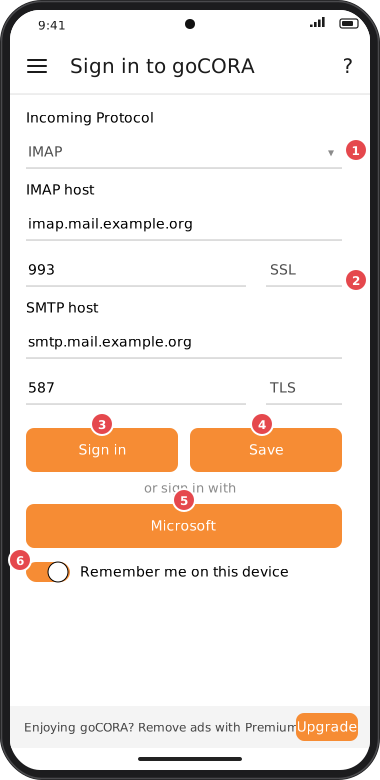
Screens are illustrated with the Android layout; Windows and iOS show the same screens with native styling. Red numbers on a picture match the numbered list or the numbers in the caption for that picture.
Server settings and buttons
- Incoming Protocol — IMAP (recommended: keeps every device in sync) or POP3. See Which account type do I need?
- Host, port and security — the incoming (IMAP/POP3) and outgoing (SMTP) server names, each with a port and a security choice of SSL, TLS or None. Changing the security choice fills in the usual port for you: IMAP 993 (SSL) / 143, POP3 995 (SSL) / 110, SMTP 465 (SSL) / 587 (TLS).
- Sign in — connects to both servers to check your settings, then opens your mail. If it fails, the red message says which server (incoming, outgoing or both) was rejected. A connection that takes longer than 60 seconds is reported as timed out.
- Save — saves the settings without testing them and returns to the Accounts screen. Useful when you're offline or editing an account; the connection is tried the next time the account is used.
- Microsoft — signs in to an Outlook.com or Microsoft 365 account through Microsoft's own sign-in page instead of a password.
- Remember me on this device — when on, the account (with its password) is stored in goCORA's encrypted storage so it reconnects automatically next time. Turn it off to use the account for this session only.
Sign-in with Google (Gmail OAuth) is no longer offered. Gmail accounts use an app password instead. If you added
a Gmail account with Google sign-in in an earlier version, remove it and add it again with an app password.