Adding a mail account
In the app: ☰ › Accounts › Add account
Tap Add account on the Accounts screen. Type your Email address, then tap the tile under Who provides this email? The screen then shows only what that provider needs, on the same page. The first time you use goCORA, this screen opens by itself.
Who provides this email?
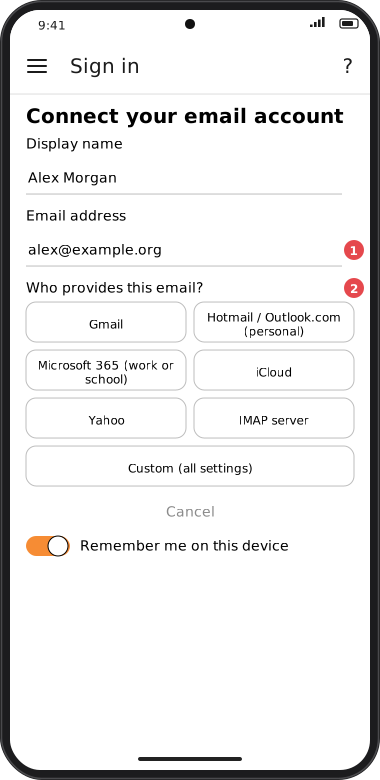
Screens are illustrated with the Android layout; Windows and iOS show the same screens with native styling. Red numbers on a picture match the numbered list or the numbers in the caption for that picture.
For a Gmail, Hotmail, Outlook.com, Live, MSN, iCloud or Yahoo address, goCORA picks the tile for you as you type the address. This is done on your device: nothing is looked up online. You can still change it.
| Tap… | For | You'll enter |
|---|---|---|
| Gmail | Gmail and Google Workspace | An app password |
| Hotmail / Outlook.com (personal) | Hotmail, Outlook.com, Live and MSN addresses | Nothing: you sign in with Microsoft |
| Microsoft 365 (work or school) | An address your work or school gave you, with Microsoft 365 | Nothing: you sign in with Microsoft |
| iCloud | iCloud, me.com and mac.com addresses | An app-specific password |
| Yahoo | Yahoo Mail | An app password |
| IMAP server | Any other provider, including your own domain, when you know its mail server's name | The server name and your password |
| Custom (all settings) | POP3 accounts, and servers that need special ports or a different sending server | Your password and all the server settings (see the full form) |
Cancel goes back to the Accounts screen, or to Settings if you haven't added an account yet.
IMAP server: just the server name
Your provider's help pages, or your welcome email, give the name of its incoming (IMAP) mail server, such as mail.example.org. That's all goCORA needs.
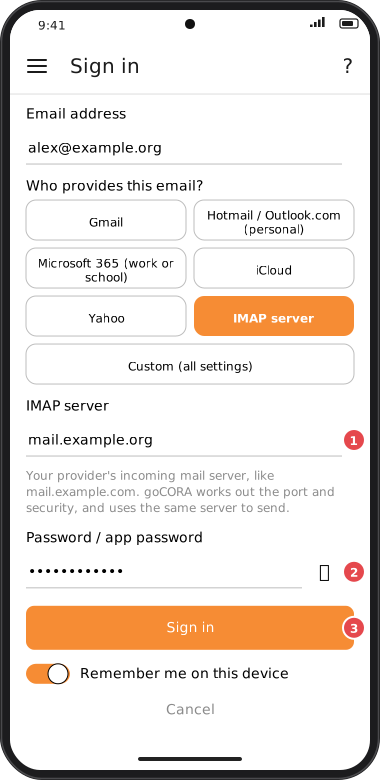
Screens are illustrated with the Android layout; Windows and iOS show the same screens with native styling. Red numbers on a picture match the numbered list or the numbers in the caption for that picture.
- Tap IMAP server and type the server name only, without https:// or a port number.
- Type your password (or the app password your provider gave you).
- Tap Sign in. goCORA finds the port and security the server uses (993 with SSL, or 143 with STARTTLS), and uses the same server to send (465 or 587). It checks each one with an encrypted connection and a valid security certificate before your password is sent, and never uses an unencrypted connection.
- If that server receives mail but doesn't send it, goCORA asks for your Outgoing (SMTP) server: type it and tap Sign in again.
If the server's certificate is issued for another name (common with web hosting companies), goCORA tells you that name: type it in IMAP server instead. For anything else, tap Custom (all settings).
Gmail, iCloud and Yahoo: an app password
These providers don't let mail apps use your normal password. Instead you create an app password on the provider's website, once, and type it into goCORA. goCORA shows a short explanation and a link to the provider's own instructions. You usually need two-step (two-factor) verification turned on for your account first.
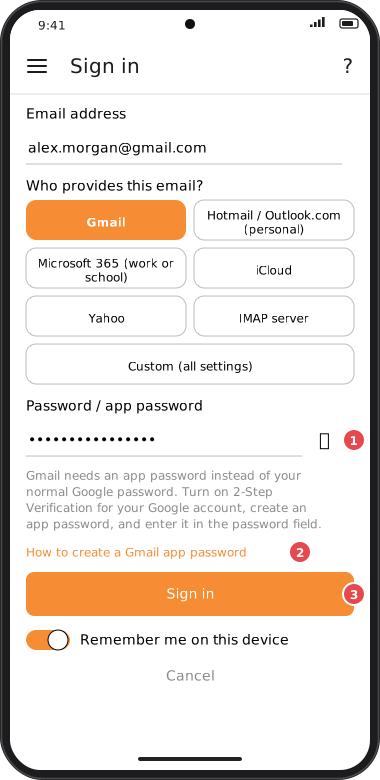
Screens are illustrated with the Android layout; Windows and iOS show the same screens with native styling. Red numbers on a picture match the numbered list or the numbers in the caption for that picture.
- Choose the provider, then type your Display name (what people see on your mail) and Email address.
- Paste the app password into Password / app password.
- Tap Sign in. goCORA checks it can receive and send, then opens your mail.
More detail for Gmail: Gmail / IMAP with an app password.
Hotmail, Outlook.com and Microsoft 365: Sign in with Microsoft
Microsoft doesn't accept mail passwords from apps, so there's no password box. Instead:
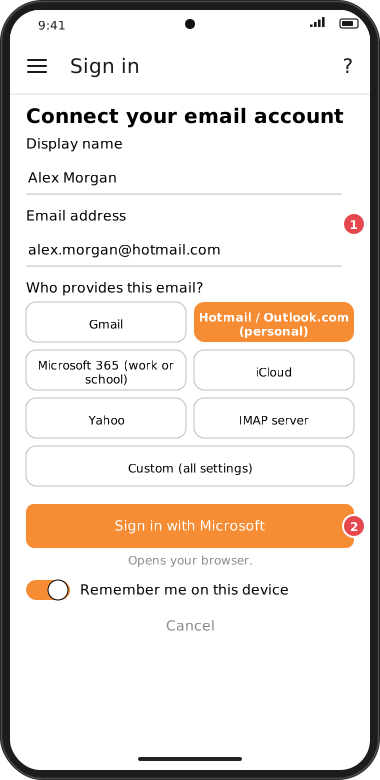
Screens are illustrated with the Android layout; Windows and iOS show the same screens with native styling. Red numbers on a picture match the numbered list or the numbers in the caption for that picture.
- Type the Email address of the mailbox you're adding. This matters: the name you sign in to Microsoft with can be a different address from the mailbox.
- Tap Sign in with Microsoft. Your browser opens Microsoft's own sign-in page, with your address filled in.
- Sign in, choose the account if Microsoft asks, and allow goCORA access to your mail.
- When the browser says you can close it, go back to goCORA: the account is added.
- Choose Hotmail / Outlook.com (personal) for a personal Microsoft account. If your browser is also signed in to a work account, goCORA won't use it by mistake.
- goCORA never sees your Microsoft password. Microsoft gives goCORA a sign-in that renews itself; if it ever stops working, a Sign in button appears on the Accounts screen (see Re-authenticating an account).
- With Cloud sync, a Microsoft account arrives on your other devices without its sign-in: each device signs in once. See Mail accounts on a new device.
- A Microsoft 365 account from your work or school may need your administrator to allow goCORA.
Custom (all settings)
Custom (all settings) shows the full form: password, incoming protocol (IMAP or POP3), servers, ports and security, with Sign in and Save. Your provider's help pages list the settings. See The “Connect your email account” screen, Generic IMAP account and POP3 accounts.
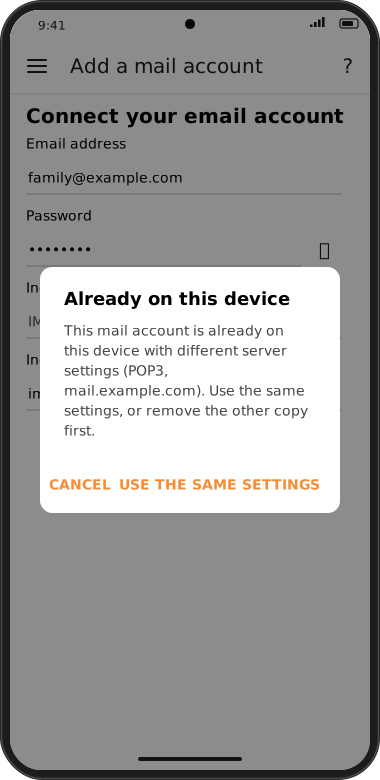
A mail account that's already on this device
Another goCORA account on this device may already use the same mail account (a shared family address, say). Adding it gives your goCORA account its own copy, with your own password or Microsoft sign-in; the downloaded mail is shared, not downloaded twice.
On one device a mail account uses one incoming server. If you add it with a different server name or type (IMAP or POP3), goCORA says Already on this device. Tap Use the same settings: the form switches to Custom (all settings) with the server settings already used filled in (never the other copy's password). Enter your password and tap Sign in. See The same mail account in two goCORA accounts.