Gmail / IMAP with an app password
Video tutorial:
Connect Gmail to goCORA
(opens in YouTube)
Google requires an app password instead of your regular Google password when connecting Gmail through a non-Google mail app like goCORA, provided you have 2-Step Verification enabled.
1. Enable 2-Step Verification
If you haven't already, turn on 2-Step Verification in your Google Account security settings.
2. Create an app password
- Go to myaccount.google.com/apppasswords.
- Enter a name such as "goCORA" and select Create.
- Copy the 16-character app password shown.
3. Add the account in goCORA
- In goCORA, go to ☰ › Accounts › Add account.
- Choose the Gmail preset.
- Enter your Gmail address.
- Paste the app password when prompted for a password (not your regular Google password).
- Select Sign in — goCORA checks the connection and opens your inbox. (Save stores the settings without testing them.)
goCORA stores the app password in encrypted local storage — see
How goCORA protects your account data for details.
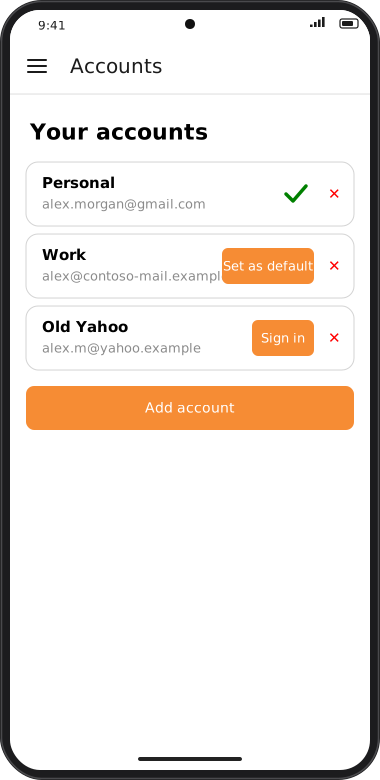
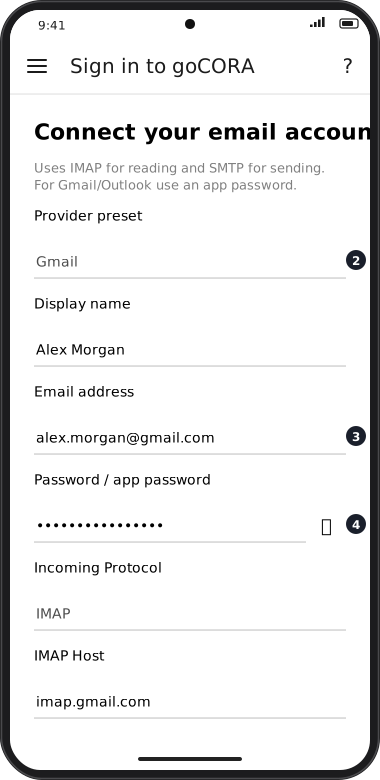
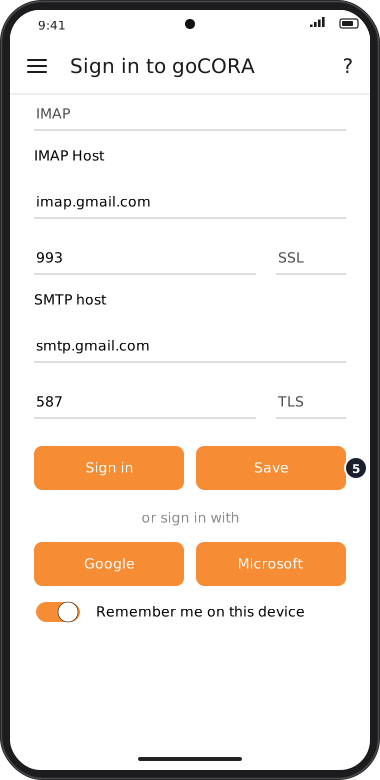
Screens are illustrated with the Android layout; Windows and iOS show the same screens with native styling. Red numbers on a picture match the numbered list or the numbers in the caption for that picture.