Contacts
In the app: ☰ › Contacts
Video tutorial:
Manage contacts in goCORA
(opens in YouTube)
goCORA keeps its own encrypted address book on your device. Contacts are used to suggest recipients when you compose, and a contact's photo is shown as the sender's avatar in the Mailbox.
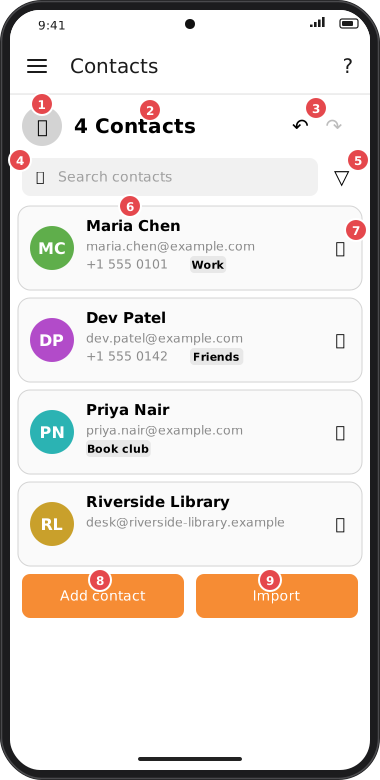
Screens are illustrated with the Android layout; Windows and iOS show the same screens with native styling. Red numbers on a picture match the numbered list or the numbers in the caption for that picture.
- Select toggle (👤) — select several contacts to tag or delete them together (see below).
- Count — how many contacts match the current search and filter.
- ↶ Undo / ↷ Redo — undo or redo your last deletes and tag changes.
- Search contacts — narrows the list as you type.
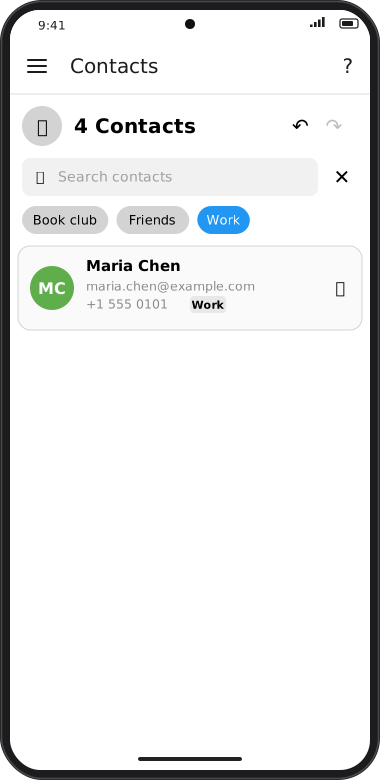
- ▽ Filter by tag — shows a row of your contact tags; tap one to show only those contacts, tap it again to clear. Tap ✕ to close the filter row.
- Contact card — tap to edit. See Adding & editing a contact.
- 🗑️ — delete this contact (confirmation can be turned off in Confirmation settings).
- Add contact — create a new contact.
- Import — bring contacts in from your device, Google, Outlook or a file. See Importing contacts.
Screens are illustrated with the Android layout; Windows and iOS show the same screens with native styling. Red numbers on a picture match the numbered list or the numbers in the caption for that picture.
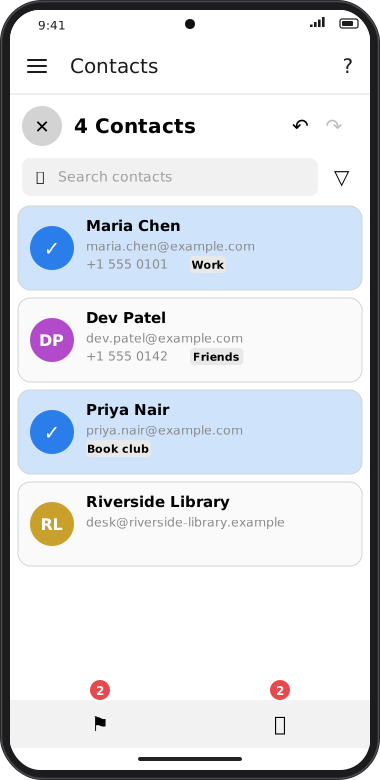
Working with several contacts
- Tap 👤 (it becomes ✕) and tap contacts to tick them.
- Tap ⚑ to add a tag to all of them — type a new tag or pick an existing one — or 🗑 to delete them.
- Made a mistake? Tap ↶ to undo.