Adding & editing a contact
In the app: Contacts › Add contact (or tap a contact)
Video tutorial:
Manage contacts in goCORA
(opens in YouTube)
Tap Add contact or an existing contact card on the Contacts screen to open this screen.
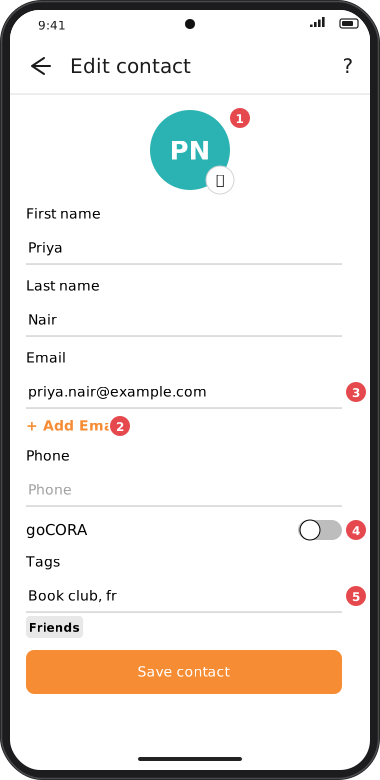
Screens are illustrated with the Android layout; Windows and iOS show the same screens with native styling. Red numbers on a picture match the numbered list or the numbers in the caption for that picture.
- Photo — tap to Choose photo from your device or Remove photo. Without a photo, the contact's initials are shown.
- + Add Email — a contact can have several addresses; each one is used for suggestions and avatars.
- Email — the contact's address(es).
- goCORA — switch on if this person also uses goCORA.
- Tags — free-text tags separated by commas (e.g. Work, Book club). Existing tags are suggested as you type; tags power the filter on the Contacts screen.
Tap Save contact when you're done. A contact needs at least a first or last name.
Contact tags are separate from the coloured message tags you create in Settings.