Tags
In the app: Settings › Tags
Video tutorial:
Organize mail in goCORA
(opens in YouTube)
Tags are coloured labels (for example Work, Family, Receipts) that you can put on messages to spot them quickly. A message has one tag at a time; it appears as a coloured label under the subject in the Mailbox and next to Apply Tag on the message screen. Tags are stored on your device only — your mail server doesn't see them.
Creating, editing and deleting tags
- Open Settings and expand the Tags section (tap its heading).
- Tap ➕ Add Tag, type a name, then pick a colour.
- To rename a tag or change its colour, tap the tag.
- To delete a tag, tap 🗑 next to it and confirm. It's removed from every message that used it.
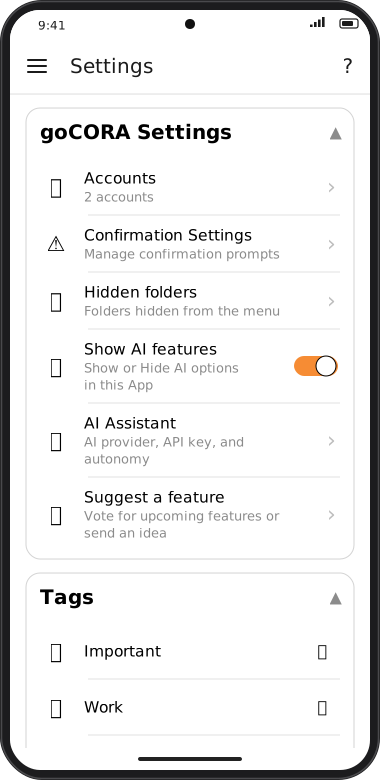
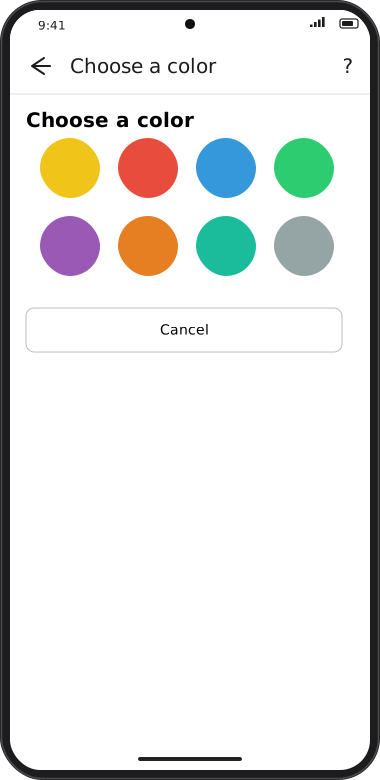
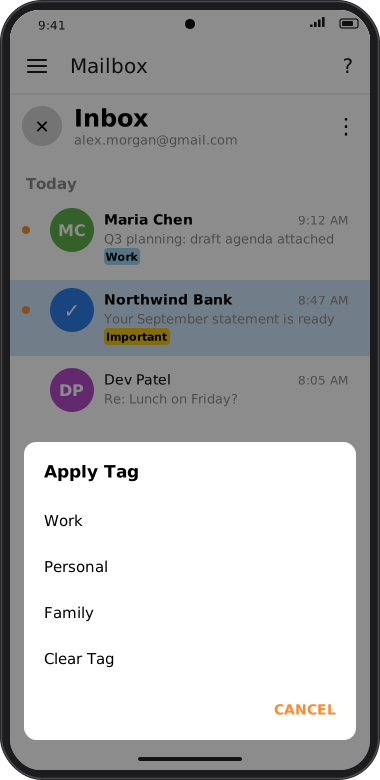
Screens are illustrated with the Android layout; Windows and iOS show the same screens with native styling. Red numbers on a picture match the numbered list or the numbers in the caption for that picture.
Tagging messages
- One message: open it and tap Apply Tag (or its current tag label), then choose a tag.
- Several messages: in the Mailbox tap 👤 to enter select mode, tick the messages, then tap ⚑ in the bottom bar (or ⋮ › Flag). See Selecting messages & bulk actions.
- Choose Clear Tag to remove the tag.
If you see “No tags defined yet. Add one in goCORA Settings.”, create a tag first as described above.
Contacts have their own free-text tags, which are separate — see Adding & editing a contact.