Selecting messages & bulk actions
In the app: Mailbox › tap 👤 (top-left)
Select mode lets you act on several messages at once. Tap the 👤 circle at the top-left of the Mailbox to turn it on; it changes to ✕. Tap messages to tick them — a blue ✓ replaces the avatar. Tap ✕ to leave select mode without doing anything.
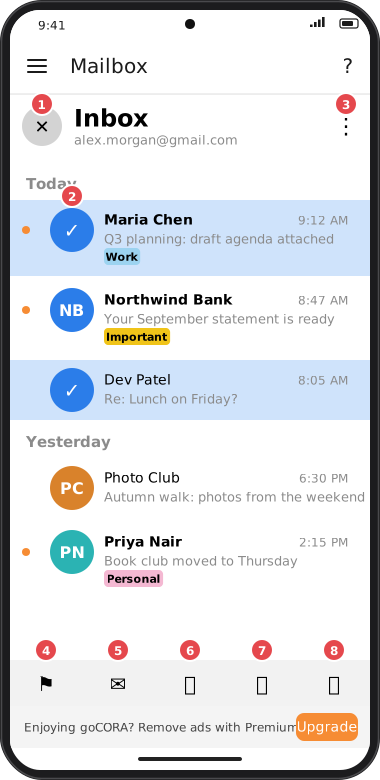
Screens are illustrated with the Android layout; Windows and iOS show the same screens with native styling. Red numbers on a picture match the numbered list or the numbers in the caption for that picture.
- ✕ — leave select mode and clear the selection.
- Ticked messages — tap a message to select or unselect it.
- ⋮ More — replaces search and filter while selecting; opens the full list of actions (below).
- ⚑ Tag — apply one of your tags to the selection, or clear it.
- ✉ Read/Unread — if any selected message is unread, all are marked read; otherwise all are marked unread.
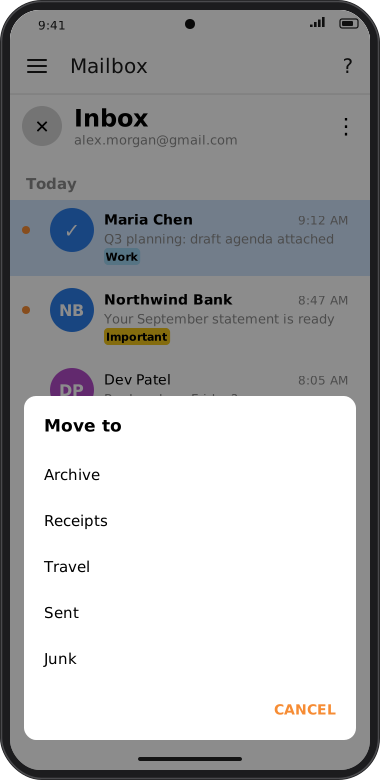
- 📁 Move — choose a folder to move the messages to.
- 🚫 Junk — move the messages to the Junk folder. When you're viewing the Junk folder this button shows 📥 and moves them back to the Inbox instead.
- 🗑 Delete — delete the selected messages.
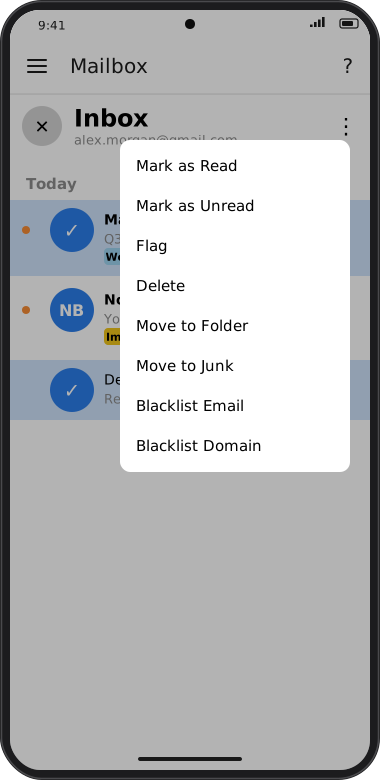
Screens are illustrated with the Android layout; Windows and iOS show the same screens with native styling. Red numbers on a picture match the numbered list or the numbers in the caption for that picture.
The ⋮ menu
| Action | What it does |
|---|---|
| Mark as Read / Mark as Unread | Sets all selected messages to read or unread. |
| Flag | Opens the Apply Tag list, the same as ⚑ in the bottom bar. |
| Delete | Deletes the selected messages. |
| Move to Folder | Moves them to the folder you pick. The list leaves out the folder they're in and folders you've hidden from the side menu. |
| Move to Junk / Move to Inbox | Moves them to Junk (or, in the Junk folder, back to the Inbox). |
| Blacklist Email | Blocks each sender's address and moves the messages to Junk. See Blacklist & Junk. |
| Blacklist Domain | Blocks each sender's whole domain (e.g. everything from example.com) and moves the messages to Junk. |
Confirmations
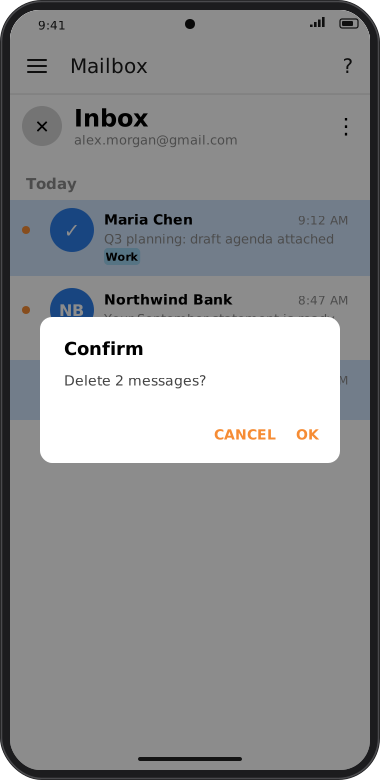
Before an action, goCORA may show a confirmation such as “Delete 2 messages?”. Confirm when deleting messages is on by default in Confirmation Settings. Turning it off skips prompts for your own deletions, even when AI is enabled. AI-initiated deletions still require confirmation.
An account's autonomy tier restricts the AI assistant, not your own manual mailbox actions. Read-only blocks AI-initiated changes, including moves approved through Tidy my inbox. See AI Assistant settings.