Blacklist & Junk
In the app: ☰ › Blacklist
Video tutorial:
Images, trusted senders and junk mail in goCORA
(opens in YouTube)
The Blacklist is goCORA's list of blocked senders (single email addresses) and
blocked domains (everything from, say, example.com). Blocking is done from a message you
received, or by typing an address on the Blacklist screen.
Blocking from a message
- Open the message, tap ⋮, then Blacklist Email (this sender) or Blacklist Domain (the sender's whole domain).
- Or in the Mailbox, select several messages and choose the same items from the ⋮ menu.
After you confirm, the sender (or domain) is added to the Blacklist and the message is moved to Junk.
The Blacklist screen
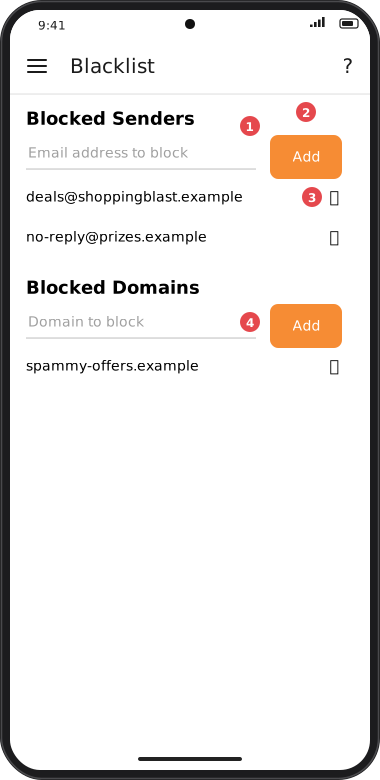
Screens are illustrated with the Android layout; Windows and iOS show the same screens with native styling. Red numbers on a picture match the numbered list or the numbers in the caption for that picture.
- Email address to block — type a full address.
- Add — adds it to Blocked Senders. goCORA checks that it's a valid address.
- 🗑 — stop blocking that sender (you're asked to confirm).
- Domain to block — type a domain such as
example.comand tap Add to block everyone at that domain. Remove it again with 🗑.
Junk
- 🚫 on the message screen (or ⋮ › Send to Junk) moves a message to the Junk folder without blocking the sender.
- While viewing the Junk folder, the select-mode bottom bar shows 📥 and the ⋮ menu shows Move to Inbox to rescue messages.
- On an email account with folders on the server (IMAP, such as Gmail), "Junk" means your provider's own junk or spam folder (for example Spam in Gmail), wherever it is stored. It stays at the top of the side menu, after Sent, and can't be renamed or deleted from goCORA.
New mail from blocked senders
- When new mail from a blocked sender or domain arrives in your Inbox, goCORA moves it to Junk for you. On an IMAP account the message is moved on the server too, so it is in Junk in your webmail as well. If the account has no junk folder, the message stays in the Inbox.
- Only the Inbox is checked. Mail in your own folders is never moved.
- If you move a message to the Inbox yourself, goCORA leaves it there, even if the sender is still blocked.
- Blocking someone only affects mail that arrives afterwards; mail already in Junk stays there if you later unblock the sender.
Your Blacklist is included in database backups and can be restored on its own — see Backing up & restoring.