The Mailbox
In the app: ☰ › an account › a folder
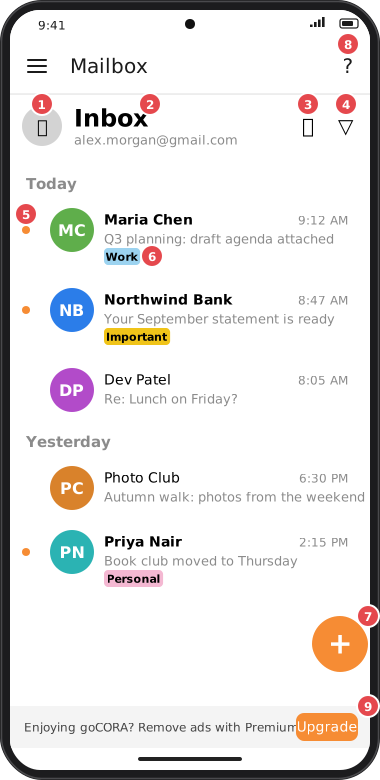
The Mailbox shows the messages in one folder of one account, newest first, grouped by day (Today, Yesterday, then dates). Tap any message to read it.
Screens are illustrated with the Android layout; Windows and iOS show the same screens with native styling. Red numbers on a picture match the numbered list or the numbers in the caption for that picture.
- Select toggle (👤) — switches to select mode so you can act on several messages at once. See Selecting messages & bulk actions.
- Folder and account — the folder you're viewing (e.g. Inbox) and the account's address. To change folder or account, open the side menu.
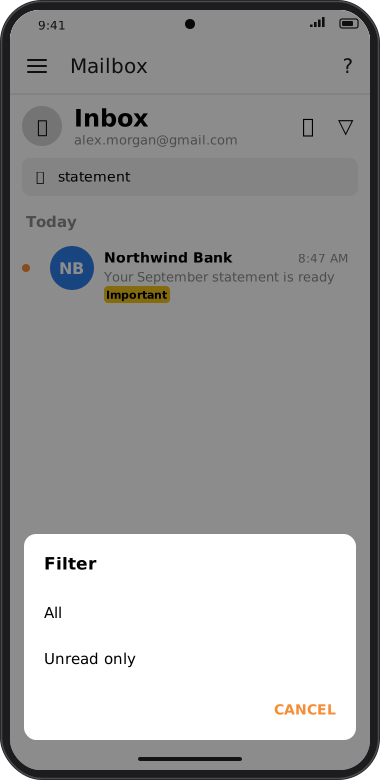
- 🔍 Search — shows a search box. Typing filters the loaded messages as you type; tap 🔍 again to close the box and clear the search.
- ▽ Filter — choose Unread only to show just unread messages, or All to show everything again.
- Orange dot — the message is unread (the sender is also shown in bold).
- Tag and Important labels — a coloured label shows the message's tag; a yellow Important label marks a flagged message.
- + Compose — start a new message. See Writing, replying & forwarding.
- ? — opens this help page.
- Ad banner — shown in the free version; Upgrade opens Premium.
Back and forward arrows
The ‹ and › arrows left of the folder name work like a browser's back and forward buttons: ‹ returns to the folder (and account) you viewed before, and › goes forward again after you've gone back. An arrow is dimmed when there is nowhere to go. Opening a different folder from the side menu starts a new path and clears the forward history.
Refreshing
- Android and iOS: pull the message list down and release.
- Windows: click the 🔄 icon next to 🔍 in the header.
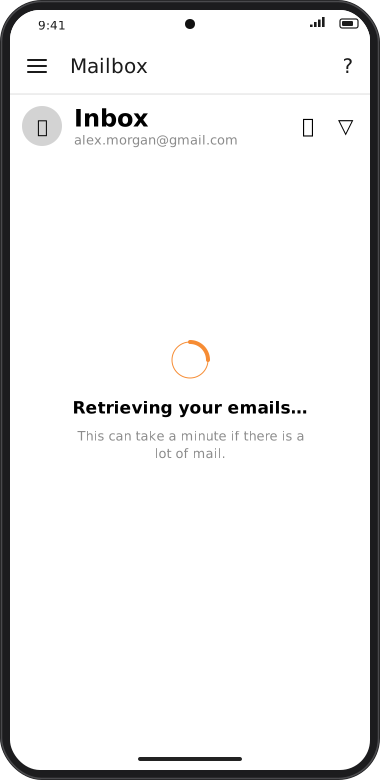
When you open a folder goCORA shows the messages it already has on the device straight away, then checks the server for new mail. The first time an account or folder is opened there's nothing stored yet, so you'll see Retrieving your emails… until the first batch arrives.
Swipe actions
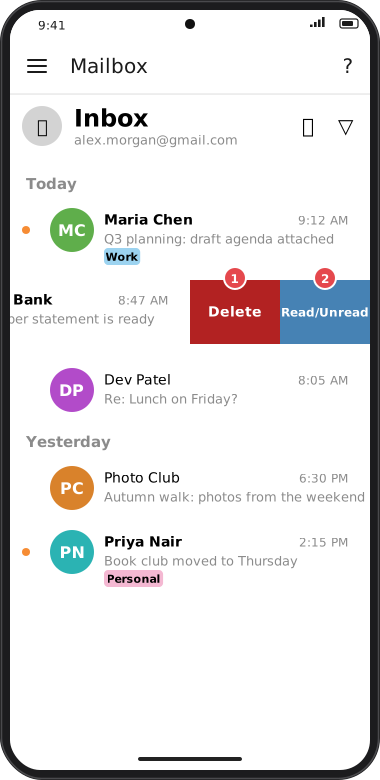
Swipe a message to the left to reveal two quick actions:
- Delete — deletes the message (you're asked to confirm unless you turned that off in Confirmation settings).
- Read/Unread — toggles the message between read and unread.
Load more
goCORA loads the most recent messages first. Scroll to the bottom of the list and tap ▼ Load more to fetch older ones.
Screens are illustrated with the Android layout; Windows and iOS show the same screens with native styling. Red numbers on a picture match the numbered list or the numbers in the caption for that picture.
Avatars
Each message shows the sender's initials in a coloured circle. If the sender is in your Contacts with a photo, the photo is shown instead. goCORA never downloads avatars from the internet.