Reading a message
In the app: Mailbox › tap a message
Tap a message in the Mailbox to open it. The message screen shows the subject, sender, recipient and date, any attachments, and the message itself.
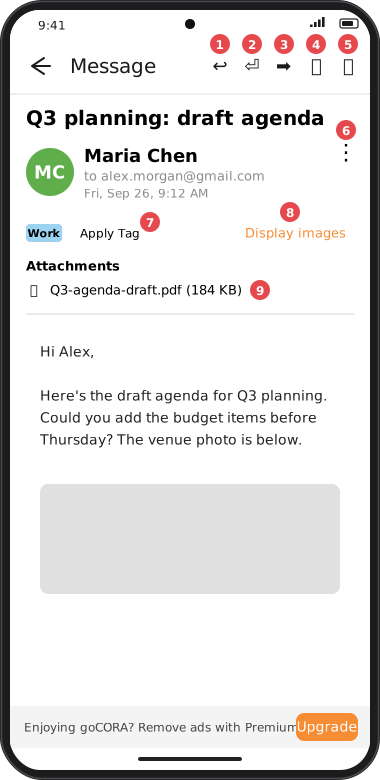
Screens are illustrated with the Android layout; Windows and iOS show the same screens with native styling. Red numbers on a picture match the numbered list or the numbers in the caption for that picture.
- ↩️ Reply — reply to the sender.
- ⏎ Reply All — reply to the sender and everyone else on the message.
- ➡️ Forward — starts a new message with the subject prefixed Fwd:; you choose the recipients.
- 🚫 Junk — move the message to the Junk folder.
- 🗑️ Delete — delete the message.
- ⋮ More — the message's other actions (below).
- Tag / Apply Tag — tap the coloured tag label or Apply Tag to choose a tag, or Clear Tag to remove it.
- Display images — shown when the message contains pictures from the internet, which goCORA blocks by default. See Images & trusted senders.
- Attachments — tap an attachment to open it with an app on your device. For a plain text file or a PDF, you're also offered Analyze with AI — see Using AI on a message.
A ✨ icon, next to the toolbar's other buttons, opens this message's AI actions (Summarize, Suggest Reply, Extract details, Translate) — see Using AI on a message.
A secure email shows the banner Encrypted with CORA above its text, or a short note explaining what's needed to read it — see Secure email (CORA encryption).
Moving between messages
Swipe left on the message to open the next message in the list, or right for the previous one. Tap ← (back) to return to the Mailbox.
The ⋮ More menu
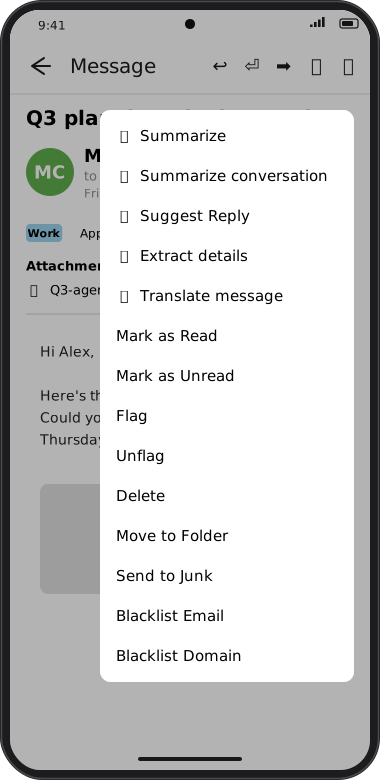
Screens are illustrated with the Android layout; Windows and iOS show the same screens with native styling. Red numbers on a picture match the numbered list or the numbers in the caption for that picture.
| Action | What it does |
|---|---|
| Mark as Read / Mark as Unread | Changes the message's read state. |
| Flag / Unflag | Marks the message as Important (yellow label in the Mailbox) or removes the mark. |
| Delete | Deletes the message. |
| Move to Folder | Moves the message to a folder you choose (folders you've hidden from the side menu aren't listed). You're taken back to the list straight away while the move finishes in the background; if it fails, an error appears and the message comes back at the next refresh. |
| Send to Junk | Moves the message to Junk. |
| Blacklist Email / Blacklist Domain | Blocks the sender or the sender's domain and moves the message to Junk. See Blacklist & Junk. |