Images & trusted senders
In the app: Message › Display images
Video tutorial:
Images, trusted senders and junk mail in goCORA
(opens in YouTube)
Many emails load pictures from the internet. Loading them tells the sender that you opened the message (and when, and roughly where), so goCORA blocks them by default and shows grey placeholders instead.
Showing images in a message
- Open the message and tap Display images (top-right, under the sender).
- goCORA downloads the images and shows them in the message.
- goCORA then asks “Always show images from sender?”
- Yes — images from this sender are shown automatically in future.
- No — only this message will keep showing its images.
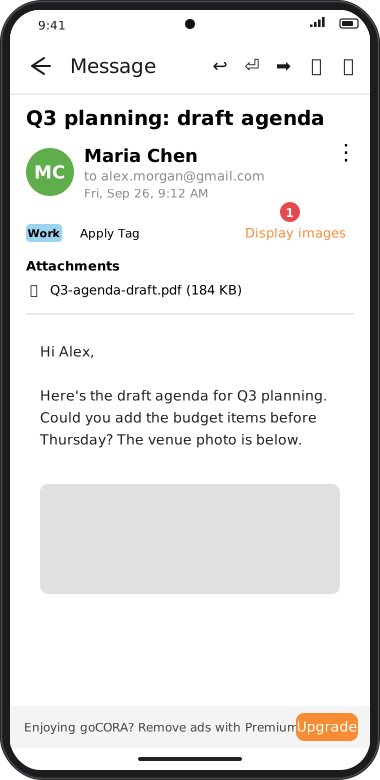
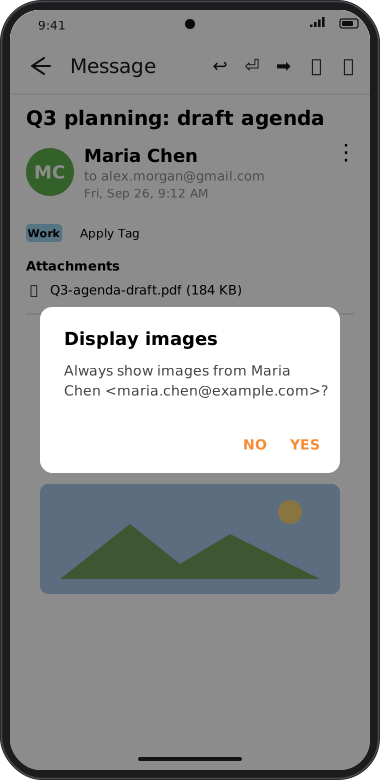
Screens are illustrated with the Android layout; Windows and iOS show the same screens with native styling. Red numbers on a picture match the numbered list or the numbers in the caption for that picture.
Choosing how trust works
In Settings › goCORA Settings › Confirmation Settings › Confirm trusting senders with Images you can choose:
- Always ask — goCORA asks each time you display images.
- Trust once I trust an email (default) — once you say Yes for a sender, their images are shown automatically.
- Trust only the email for which images were downloaded — goCORA never remembers senders; you tap Display images on each message you want to see.
Your trusted-sender list is included in database backups — see Backing up & restoring.