The side menu
In the app: Tap ☰ in the top-left corner
The side menu is goCORA's main navigation. Open it by tapping ☰ in the top-left corner of the Mailbox (or swiping in from the left edge on phones). On Windows the menu can also be opened from the same button.
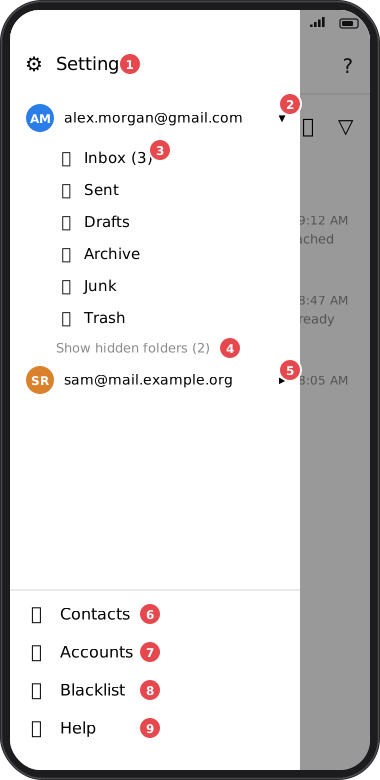
Screens are illustrated with the Android layout; Windows and iOS show the same screens with native styling. Red numbers on a picture match the numbered list or the numbers in the caption for that picture.
- ⚙ Settings — opens Settings.
- An account — tap an email address to expand (▾) or collapse (▸) its folders. Expanding an account also makes it the active account.
- Folders — tap a folder (Inbox, Sent, Archive, Junk…) to open it in the Mailbox. Unread counts are shown after the folder name where the server provides them.
- Show hidden folders (n) — appears only when you have hidden folders for this account. See Folders & hidden folders.
- Other accounts — each mail account you added appears here, so you can switch between them.
- Contacts — your address book.
- Accounts — manage your mail accounts.
- Blacklist — the senders and domains you've blocked. See Blacklist & Junk.
- Help — opens this Help Center.
Hiding a folder from the menu
Long-press a folder (Android/iOS) or right-click it (Windows/Mac) and choose Hide from menu. The folder keeps syncing — it's only removed from the list. Full details are in Folders & hidden folders.
Mail accounts that were signed out (for example a Microsoft account after Log out) are not
listed in the menu until you sign them in again from Accounts.