Folders & hidden folders
In the app: ☰ › an account · Settings › goCORA Settings › Hidden folders
goCORA shows the folders that exist on your mail server (Inbox, Sent, Drafts, Junk, Trash and any you created) under each account in the side menu. Tap a folder to open it in the Mailbox. The number in brackets is the folder's unread count.
On an IMAP account you may see both Sent and the server's own sent folder (e.g. Sent Mail). See Sent vs. Sent Mail for the difference.
Moving messages to a folder
- From a message: ⋮ › Move to Folder.
- From the Mailbox: select messages, then tap 📁 in the bottom bar.
Changing the order of your folders
You can put an account's folders in the order you like, or sort them A–Z. Inbox, Sent, Junk and Trash are standard folders: they always stay at the top, in that order, and can't be moved. Your own folders follow them.
- Open the side menu.
- Long-press the account (Android/iOS) or right-click it (Windows/Mac) and choose Arrange folders.
- Tap ▲ or ▼ next to a folder to move it up or down (1), or tap Sort A–Z (2). Reset to default order goes back to the order your mail server uses.
- Tap Save (3). Cancel leaves the order as it was.
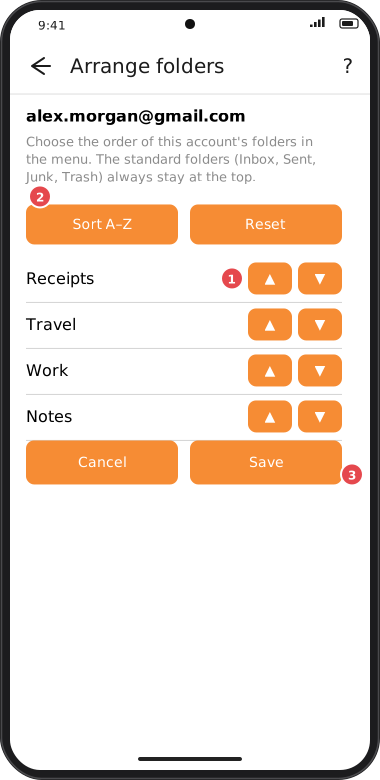
The order is remembered separately for each account, and only on this device. A folder you create later is added at the end of your list. A folder you have hidden keeps its place and returns to it when you show it again. The order is included when you back up and restore your accounts.
Hiding folders you don't use
Hiding a folder only removes it from the side menu. It still exists on the server and keeps syncing, and nothing in it is deleted. Hidden folders are also left out of the Move to Folder list; show the folder again to move mail into it.
- Open the side menu and expand the account.
- Long-press the folder (Android/iOS) or right-click it (Windows/Mac).
- Choose Hide from menu.
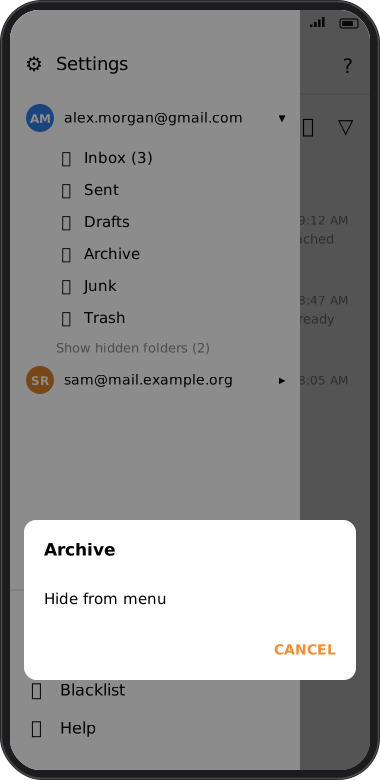
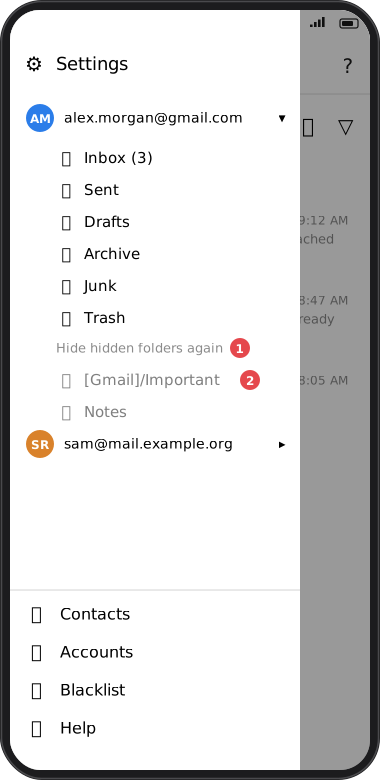
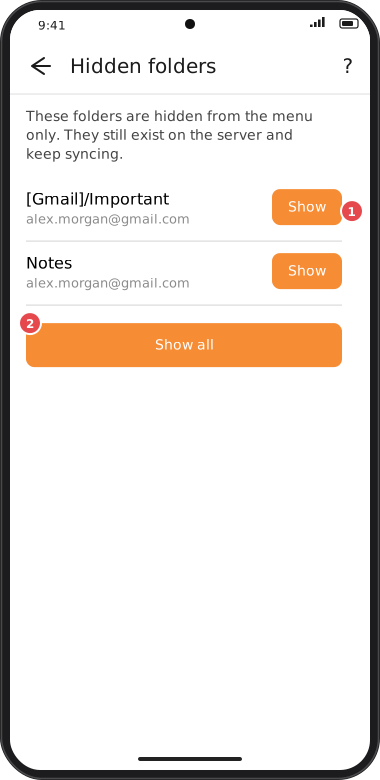
Screens are illustrated with the Android layout; Windows and iOS show the same screens with native styling. Red numbers on a picture match the numbered list or the numbers in the caption for that picture.
Showing hidden folders again
- For a moment: in the side menu tap Show hidden folders (n) under the account. The hidden folders appear greyed out (1) and can still be opened. Tap Hide hidden folders again to tuck them away.
- Permanently: long-press/right-click a greyed-out folder and choose Show in menu, or go to Settings › goCORA Settings › Hidden folders and tap Show next to a folder (1), or Show all (2).
Hidden folders are remembered separately for each account.