The home screen
In the app: Shown when goCORA starts
The home screen is the first thing you see after goCORA starts and your mail accounts are loaded. It confirms which email account is active and gives you one-tap access to the main areas of the app.
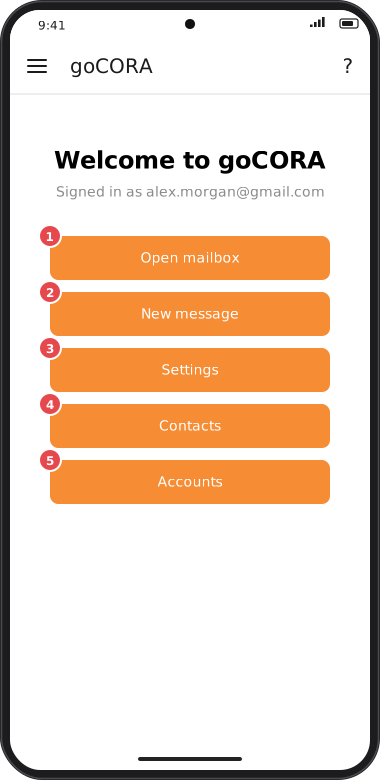
Screens are illustrated with the Android layout; Windows and iOS show the same screens with native styling. Red numbers on a picture match the numbered list or the numbers in the caption for that picture.
- Open mailbox — opens the Mailbox for the active account.
- New message — opens the mailbox and starts a new message. See Writing, replying & forwarding.
- Settings — opens Settings.
- Contacts — opens your Contacts.
- Accounts — opens the list of your mail accounts. See Managing your mail accounts.
Under the heading, Signed in as shows the email address of the account goCORA is currently using.
What happens when goCORA starts
- If Require User Sign-in is on, goCORA first asks you to sign in to your goCORA account — see Require sign-in & biometric unlock.
- goCORA then reconnects the mail accounts you saved on this device.
- If no mail account is saved yet, you're taken straight to Connect your email account.
You can reach every screen from the side menu too — tap ☰ in the top-left corner.