Tidy my inbox
In the app: Mailbox › ✨ › Tidy my inbox
Tidy my inbox looks at the most recent messages in whichever folder you're viewing, suggests a category and a destination folder for each one (chosen only from your account's own folders, plus Junk), and lets you review and approve every suggestion before anything actually moves.
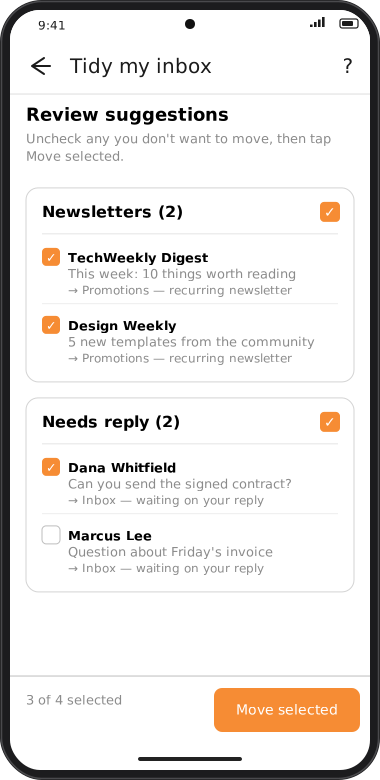
Screens are illustrated with the Android layout; Windows and iOS show the same screens with native styling.
Before you start
- Sign in to your goCORA account (how). Tapping ✨ while signed out asks you to sign in first.
- In AI Assistant settings, save an API key and switch the AI assistant on.
- In the same settings, under Features, turn on Tidy my inbox. It's off by default, the same as Ask your mailbox and for the same reason: it sends more than the one message on screen.
Using it
- Tap ✨ on the Mailbox screen, then Tidy my inbox.
- Choose how many of the folder's most recent messages to look at (25, 50 or 100).
- goCORA tells you exactly how many messages will be sent — sender, subject, date and a short snippet for each, never the full message — and asks you to confirm before anything is sent.
- Suggestions come back grouped by category (e.g. Newsletter, Invoice, Needs reply), each with the folder it suggests and a short reason. Every suggestion starts checked.
- Uncheck anything you don't want moved, or use a group's own checkbox to include or exclude everything in that category at once.
- Tap Move selected. Approved messages move, grouped into one action per destination folder.
If a message already looks like it belongs where it is, it's simply left out of the suggestions rather than listed as "no change needed."
Your review is the approval
Every move still goes through goCORA's central action gateway — the same one every mailbox action in the app uses — so an account set to Read-only in AI Assistant settings never lets Tidy my inbox move anything, no matter what you approve here. For every other tier, ticking a suggestion and tapping Move selected on this screen is the confirmation — you won't see a second "Are you sure?" popup on top of it.
The Automatic actions switches in AI Assistant settings are separate: they're for a future update where the AI can sort newly arrived mail on its own, in the background, without a review screen like this one. They have no effect on Tidy my inbox, which always shows you what it's about to do first.
Your permission comes first
As with every AI feature, nothing is sent to Claude or OpenAI until you've allowed that provider to receive email content once, and — for this feature specifically — until you've confirmed the message count shown for that batch. The data goes directly from your device to the provider under your own API key; goCORA's servers aren't involved. See AI Assistant settings to review or withdraw permission at any time.